

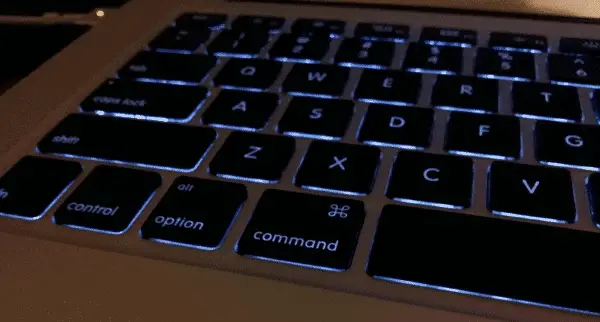
There could be any number of reasons why you want to take a screenshot on your PC, and if you’re using Windows then the chances are then your computer has a dedicated button, ‘print screen’ for example, which will take one for you.
A Mac, however, has no such button, and therefore we Mac users have to find another way. Thankfully, there are a couple of efficient ways of taking screenshots in Mac OS X, so read on to find out how.
Take Screenshots in Mac OS X
Keyboard Shortcuts
I guess this is what you would describe as the Mac equivalent of the “print screen” button, however in OS X, we have a few more options than just a full screenshot of everything on the desktop at the time, which can be done simply by hitting the keyboard combination cmd+shift+3. The screenshot is then, by default, placed on the desktop as a .PNG file, named with a timestamp and date.
Instead of that, we can hit cmd+shift+4 to give ourselves a little more flexibility. For instance, you’ll notice immediately that you have a small crosshair appearing with some coordinates labeling it. Simply click and drag this and you can take a screenshot of a select portion of the screen at the time.
However, as I do quite frequently whilst writing these how-to guides, you might want to take a shot of a specific window within an application only, rather than everything surrounding it as well. You can do this relatively simply, by hitting cmd+shift+4 as before, but then before clicking and dragging, hitting the space bar. Once you do this, you’ll be faced with an icon of a camera, which will become your cursor. You can use this to highlight any active window, or indeed the desktop, and take a screenshot by just clicking once on it.
What’s also interesting about Mac’s built-in tool, is that it automatically creates a drop shadow making your screenshots easier on the eye than those you’ll capture with Windows for instance.
Third Party Apps
There are many apps for this purpose for OS X, some of which you’ll find on the app store, some of which you’ll only find online. Some of which are free, some of which you’ll have to pay for, but here’s a short rundown of my favorites.
Little Snapper

First up we have Little Snapper by developers RealMac Software, and it has a few interesting features that take us over and above what we get with the standard, built-in, OS X tool. For example, Little Snapper has what is actually quite a common feature amongst paid screenshot applications, which allows you to take snippets from web pages, rather than the entire browser as a whole.
Now what’s almost unique about Little Snapper, is that it features a built-in web browser for this very purpose, and allows you to customize your web snaps, as well as your screenshots, by tagging them and labeling them with useful comments. The application then automatically categorizes your snaps into web snaps and desk snaps by filing them into the inbuilt library, which is an aesthetically pleasing display of all your previous screenshots. Sort of like Finder, just for screen grabs.
Sometimes when taking screenshots, you’ll need to hide sensitive data, therefore Little Snapper includes tools for blurring and cropping those areas, such as addresses, phone numbers or even financial information that might be within the screenshot you’re about to post online.
Little Snapper also includes a host of advanced features, such as uploading images to a Flickr or FTP account automatically and configuring your own keyboard shortcuts.

The only problem is, however, that Little Snapper isn’t exactly free. It’ll set you back $39.99, or just over £25 from either the Mac App Store or the RealMac Software store online. Having said that, there is a free trial, and it’s my favorite of the paid applications out there based on quality alone. If you take a lot of screenshots and really have to keep them organized, this is probably a worthwhile investment.
Snap N Drag

Next up we have the free alternative, widely considered to be the best and most popular screen shooting freeware for Mac. There is a pro version which isn’t particularly expensive, just $5.99.
Snap N Drag is an extremely simple application in truth, with few in-depth features over and above what you can do as standard on OS X using keyboard shortcuts. For instance, you can use the tool to take a screen grab of a portion of the screen, a selected window, or the screen as a whole. Once you’ve taken said screenshots, there is a next step involved this time around.
Instead of the shot simply being named automatically and placed on the desktop, Snap N Drag allows you to rename the file before you save, select a format for saving it in, alter the quality of the image to save on file size if you need to, as well as reducing the actual size of the image to 75%, 50% or 25% of the original resolution. Also, you can give a little border to your screenshots if you like by choosing the width before you save from the built-in tool.
Lastly, and on top of what you can do as standard, Snap N Drag does allow you to take timed screenshots, in case you need to quickly prepare something on-screen which you want to be a part of the screenshot. You can set the time yourself within the app which only consists of a single window, and then just hit the timed button and get to work.
Like I said, Snap N Drag is free so well worth a look to see if it’s suitable.
Summary
So there you have it. There’s a trio of simple ways to take screenshots in OS X. The standard option, the professional option, and the free option. At the end of the day, it’s going to come down to what you need to take screenshots for, how complex they need to be, whether you need to organize them or label them, comment on them perhaps.
There are many more apps for you to choose if neither of these take your fancy, and many of them will have free trials online if you don’t want to buy straight from the app store.
See Also:
- How to Create Keyboard Shortcuts in iOS 5 for Improved Typing Speed on Your iDevices
- Mac App Of The Week: Anxiety – A Lightweight To-do Management App
- OS Track – Keeps Track of Your Mac’s CPU, RAM and Bandwidth Usage