

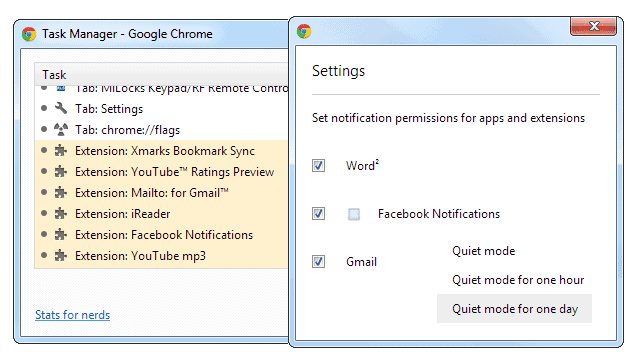
Chrome has the ability to run extensions in the background, even after the browser has closed down. This is great for apps that don’t require the browser to run but can not only bog down system resources but also cause result in unnecessary notifications. If Chrome is closed down, sometimes you want the notifications to cease as well.
Stop background apps from running after Chrome is shutdown
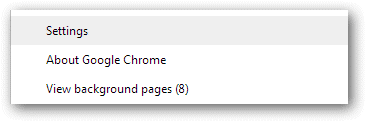
To have apps stop running in Chrome when the browser is no longer executed, open the “Settings” from Chrome’s menu.
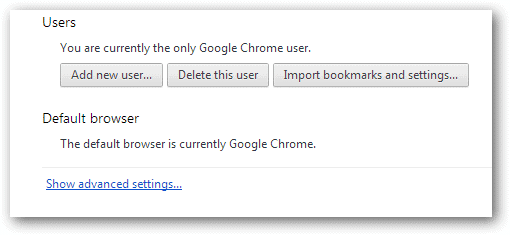
Scroll down to find more advanced settings by choosing to “Show advanced settings….”
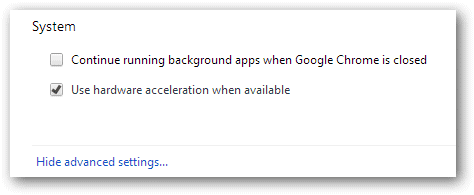
Privacy, network and system settings, among others, will populate at the bottom of the screen. Scroll down to “System” and uncheck “Continue running background apps when Google Chrome is closed” to completely shut down these apps upon close.
Now that these apps are closed we shouldn’t receive any indication that they’re running. Right? Wrong. A notification center located in the task bar can still run, showing app notifications.
Silence Chrome notifications from the taskbar
Locate the “Chrome – Notifications” icon on the task bar.

Click on this icon to bring up an additional window.
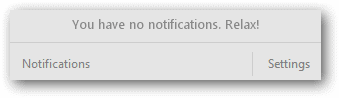
Choose “Settings” on the bottom right to show the apps that use send notifications through this feature.
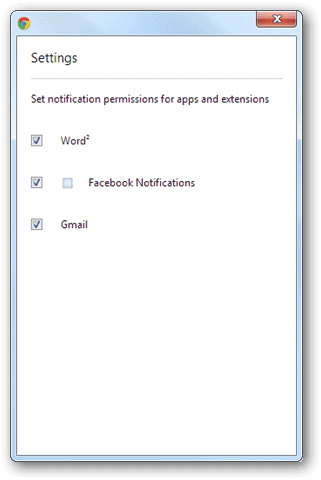
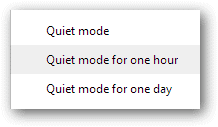
You can uncheck these options individually to remove their service from pushing these notifications but what if you want to just turn this whole feature off? Right-click this icon from the taskbar this time, and notice three options for silencing these app notifications. The only options available are to enter quite a mode for an hour or for a whole day. This isn’t actually removing the notifications from the taskbar.
To completely remove this from appearing at all, it needs to be disabled in Chrome’s settings. This is separate from the background apps. Notice we disabled it but this notifications app is still running. Open “Chrome://flags” from the URL bar to access the experimental features section of Chrome.
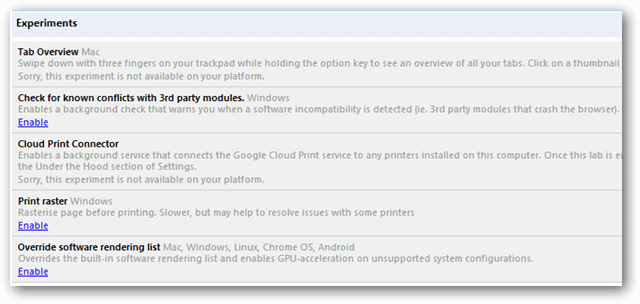
We are looking for the “Enable Rich Notifications” section. Do a search via “Ctrl+F” in the flags window.

Find the section and choose to “Disable” these notifications.

Relaunch Chrome no longer runs the notification feature.

Conclusion
Chrome background apps and notifications are now disabled. When Chrome is closed it’s now truly shut down without any background processes lingering. With the Chrome Notifications feature turned off we also won’t be getting any more of those app notifications.