

Birthdays, especially those of dear ones, can lead to unpleasant situations if forgotten. In most cases, Facebook gives a morning reminder, but it cannot be a permanent situation. Knowing how to add birthdays to Google Calendar can help you avoid the embarrassment of forgetting someone’s birthday in such cases.
The Google Calendar has a clean and straightforward user interface, which makes it easy to add contacts’ birthdays. It is the most preferred calendar when it comes to selecting from the kinds of calendars available today on the Play store. You can also set yearly reminders for your friends’ birthdays, so you don’t have to browse calendars and you get a notification on your contact’s birthday. Users can also create a personalized calendar in Google Docs for upcoming events if they don’t wish to use the Google Calendar.
How to Add Birthdays to Google Calendar Swiftly
You can sync your email address along with the Google Calendar with your iPad, iPhone calendar, iOS device, or Android device, or even use it on a personal computer. On that note, let’s see how to add birthdays to your personal calendar and relax!
How to Add Birthdays to Google Calendar
1. Open the Google Calendar.
2. Select the calendar layout and the date.
3. Select Reminder in the dialog box.
4. Enter the birthday details and click Save.
Note: The quick steps mentioned above will help you with the basics. Now, let’s check out in detail how to add birthdays to google calendar with images.
How To Add Google Calendar Birthdays On PC
Adding Google Calendar birthdays on your desktop computer is a straightforward task. You also have the option to customize the birthday reminder in several different ways.
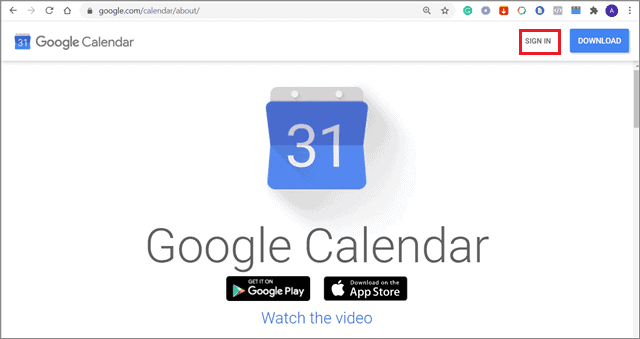
To begin with, open the Google Calendar on the Google Chrome browser. Once you search for Google Calendar, you need to click on the Sign In button in the top right corner.
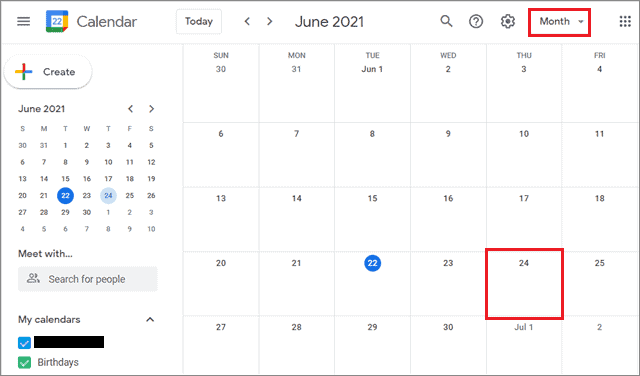
Then, in the top right corner, select the calendar layout according to your preferences.
Browse interesting calendars and based on day, week, month, and year layout, you can choose the one you are comfortable with. Selecting layouts isn’t mandatory, but it will help you locate the date faster if you plan to add a Google Calendar birthday event that is weeks or months away.
Now, click on the date on which you wish to add the birthday event.
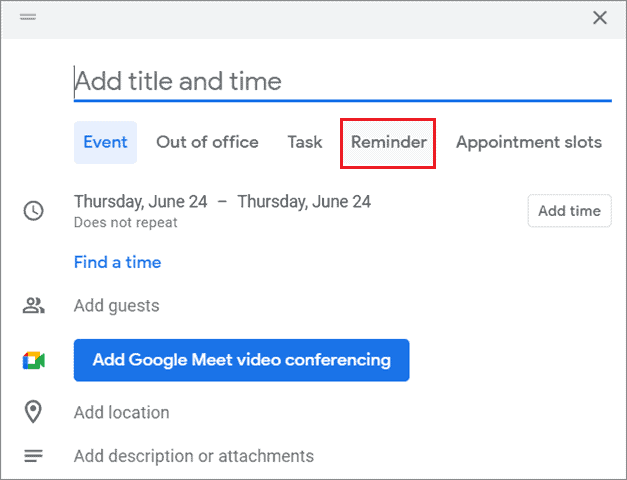
A dialog box will appear once you click on the date. Next, click on the Reminder section in the dialog box.
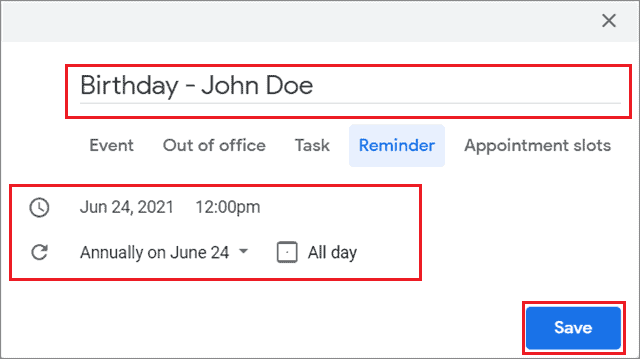
Enter the Google Calendar birthday details as shown below. Make sure you select the Annual option to ensure you get periodical birthday notifications about the birthday event. This will also help you avoid setting reminders manually every year for your contacts.
Click Save once you have added the details.
The birthday will be added to the calendar, as shown below.
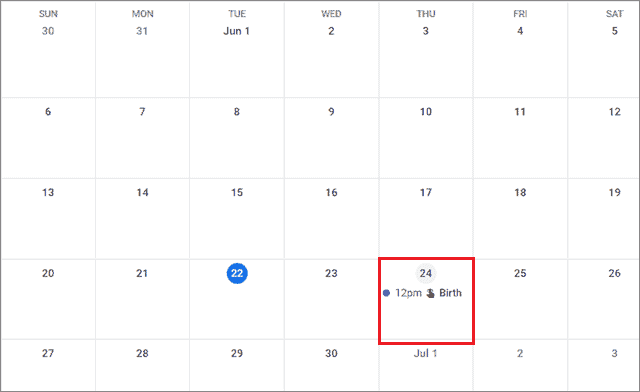
That’s all about how to add birthdays to Google Calendar on a desktop PC. However, if you are an avid mobile user, you can also use the alternative method to add a birthday to Google Calendar.
How To Add Birthdays To Google Calendar From Facebook Account
Before we begin, it’s essential to know that Facebook and Google Calendar cannot be synced together. Instead, you need to export the Facebook events data and then add it to the Calendar in two stages.
If you want to sync Facebook birthdays to Google Calendar, you need to open the Chrome web store and add the Calendar Extractor extension to your Google Chrome browser.
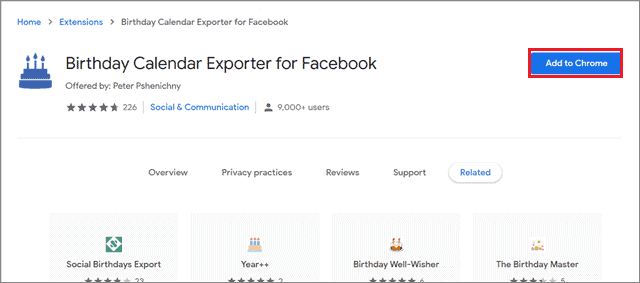
Next, go back to the Facebook tab and click on the Extractor add-on icon in the top right corner.
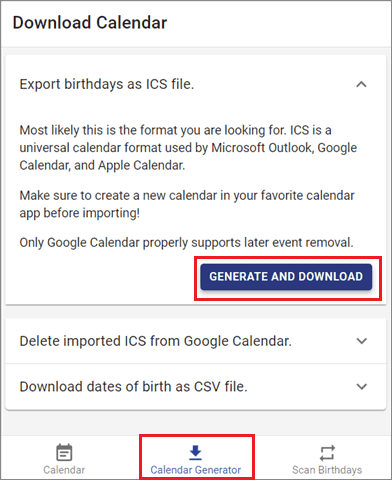
Select Calendar Generator at the bottom and click on ‘Generate and Download.’ You will get the .ics file of the birthday calendar from Facebook.
For all those who don’t know, ICS is a universal calendar format used by Microsoft Outlook, Google Calendar, and Apple Calendar.
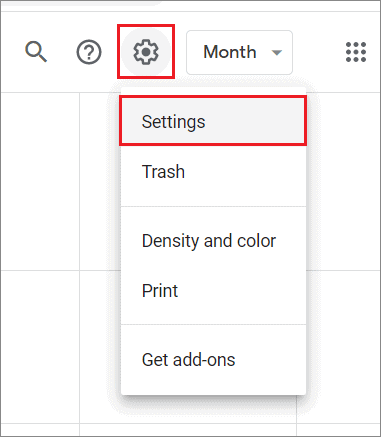
Now, go back to the Google Calendar and click on the gear-shaped icon. Select Settings from the drop-down menu.
Select Import/Export in the left pane and upload the ICS file. Click on Import once the upload is complete.
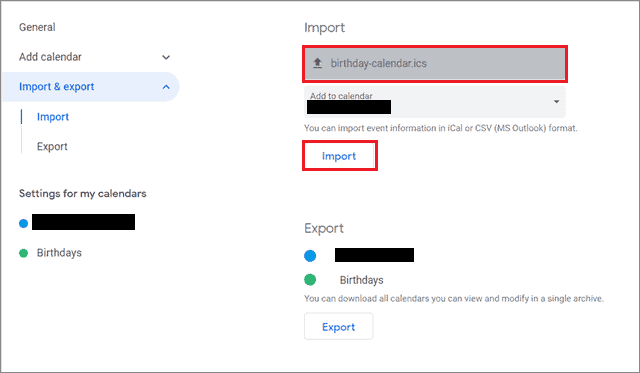
Once the transfer is complete, the Calendar will notify you about your Facebook friends’ birthdays
How To Add Birthdays To Google Calendar On Android Using Contacts App
If you are an avid Android phone user, you can learn how to add birthdays to Google Calendar on your smartphone is a pretty straightforward way using the Google Contact application.
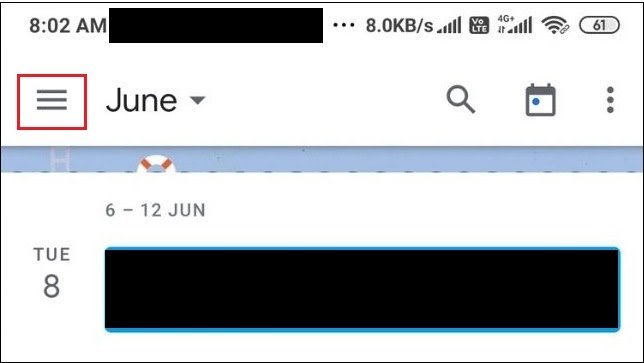
To begin adding birthdays, open the Google Calendar app and tap on the three-line menu, also called the hamburger menu, in the upper-left corner.
In the left sidebar, tap on the Birthdays option to enable it.
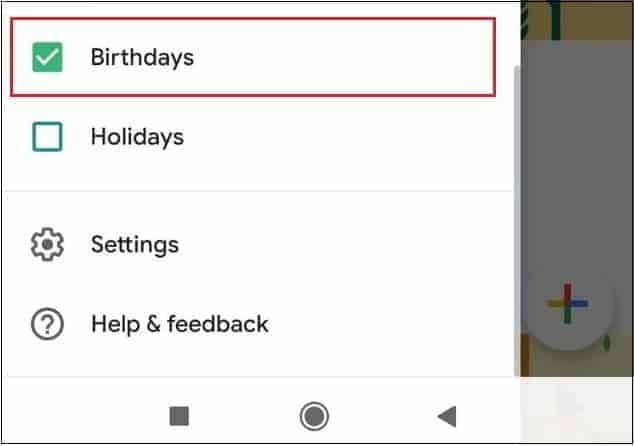
After you enable this feature, all the individual birthdays from your Google Contacts will appear in the Google Calendar.
If you wish to add a variety to the Google Calendar birthday, just click on that particular date and click on the ‘Default color’ option.

Next, choose the color of your choice to represent the selected date.

That’s all about how to make a new calendar for birthdays using the Contacts Google app. If you don’t use the Contacts app, you can follow the first method to add a Google Calendar birthday manually. Users can also add a separate event for a birthday in their work calendar if they wish to avoid switching between the work, personal, and holiday calendars.
Conclusion
Remembering birthdays can be terrible with the hectic schedule and life that we have today! But no worries, you can save the trouble if you know how to add birthdays to Google Calendar. Doing so will make sure you don’t miss out on the birthday events of your family members, friends, and colleagues.
Although the process is manual and might appear a bit lengthy, it’s easy enough to grasp in one go. So, the next time someone tells you their birthday and you need to remember it, look no further than the Google birthday calendar list to help you out!