
Google Calendar helps you manage events, reminders, and meeting schedules conveniently. People mostly use Google Calendar to save important dates and appointments. If you have an iPhone and not an Android device, it can become challenging to manage Google Calendar. However, you can now sync Google Calendar with iPhone very efficiently.
There is an inbuilt way and third-party calendar apps to ease the syncing of Google Calendar and iPhone. Knowing the syncing process can be helpful if your business is scheduling meetings and events using Google Calendar instead of Apple Calendar. You can also add birthdays to Google Calendar once it is synced with your phone.
How to Sync Google Calendar with iPhone
As mentioned above, there are two ways to sync Google Calendar with the iPhone. You can choose any of the ways depending on your feasibility. However, before proceeding with the syncing process, keep the credentials to your Gmail account handy.
Use Inbuilt Option
The simplest way to sync Google Calendar with an iPad/iPhone is to add an account directly to your mobile device. The setup process is pretty straightforward, and you can access Google Calendar events from iOS device.
Step 1: Launch the Settings app on your iPhone and tap on Passwords & Accounts from the Settings menu.

Step 2: On the next screen, click on Add Account. If you already have the account, click on the Gmail option above Add Account and jump to step 5.

Step 3: Select Google from the list of accounts options.

Step 4: Add your email address and password correctly to add the Google account.
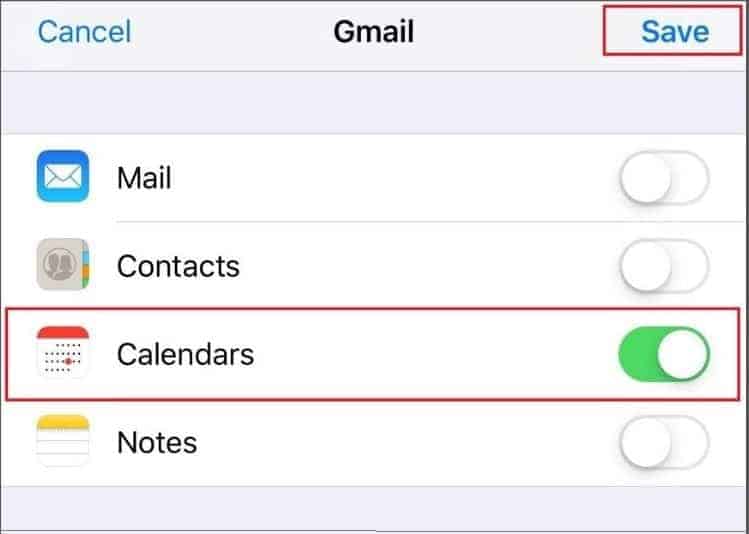
Step 5: Now, enable Calendars by toggling the switch next to it. You can enable Mail, Contacts, and Notes as per your requirements.
Once calendar sharing is enabled, click on Save in the upper right corner of the iPhone if you recently added the Gmail account.
Step 6: Open the iPhone Calendars app on your phone. You can use the default calendar app on iPhone; there is no need to download any additional apps.
Step 7: Click on the Calendars at the bottom of the Calendars app.

Step 8: Enable the Gmail address you recently added by clicking on the round button next to it.

You will now see all the reminders, appointments, birthdays, and calendar events of your Google Calendar from your iPhone. Now, you can add Facebook events to Google Calendar and keep a tab on it via iPhone.
If there is some issue with your Calendar sync, you can remove the Gmail account and add it again. Also, check if the correct Gmail account is synced, that is, the account whose Google Calendar is in use.
Use Third-party Calendar Application
If you don’t like the user interface of the inbuilt app or want to explore third-party calendar apps to sync Google calendar with iPhone, you can check out Calendars by Readdle. It is a free app on the Apple Store that allows you to use calendars from Google, Microsoft Exchange, Outlook, etc.
Download and install Calendars from Readdle App from Apple Store.
After the app is installed, launch it and click on Get Started.

Click on plus sign ‘+’ next to Google and add your Gmail credentials.

You have to give this app permission to access the Gmail account to sync your calendar be it calendar items or calendar entries. There is also a third-party service Google Calendar app in the Apple Store to sync google calendar with iPhone and iOS devices.
Conclusion
The merging of calendars with our smartphones is a must to avoid missing out on important events across devices and appointment reminders. You can easily sync Google Calendar with an Android phone, but you need to put extra effort into an Apple device like iPhone for syncing external calendars. There are ways to sync Google Calendar with iPhone.
You can add an account via the Settings app or use a third-party application. Calendar users need to make sure that they use a trusted third-party application to avoid any virus and other security problems. Also, you can sync multiple Google Calendars with iPhone by adding numerous accounts via Settings.