

The Windows error codes come with a brief message most of the time, making it easy to fix them. However, this is not true with the error 0x80004005; you can only see an Unspecified error message in front of this error code.
The 0x80004005 error can pop up while accessing a file/folder, launching an application, extracting a compressed folder, or updating Windows. There can be different situations in which each user faces this error. And therefore, there are multiple ways in which we can fix this error.
The below guide is divided into multiple sections based on the scenarios in which Windows users experience the error.
Common Solutions To Fix Error 0x80004005
Sometimes, the standard solutions can fix the error, and you don’t need to dig deeper in your system settings. We recommend checking out the common solutions and then moving on to the specific section based on your issues.
1. Update Windows Operating System
Microsoft Windows updates can update the device driver’s software. You can also fix temporary bugs of previous versions by keeping your system up to date. So, the first thing you should do is update your Windows OS.
Press Windows key + I to open the Settings app and go to Update & Security. Make sure you are in the Windows Update section and then click on the Check for updates button.
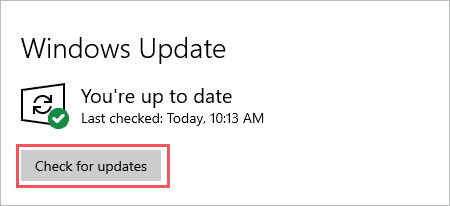
Connect to the stable Internet connection, and download the update if available. You can restart your computer to install the update.
2. Uninstall Third-party Antivirus
The third-party antivirus software can cause trouble for Windows users, especially if they are not from trusted sources. You can temporarily uninstall third-party antivirus and check if this helps in eliminating error 0x80004005.
Launch the Settings app and go to Apps. Now, search for your antivirus software and click on it. Click on the Uninstall button.
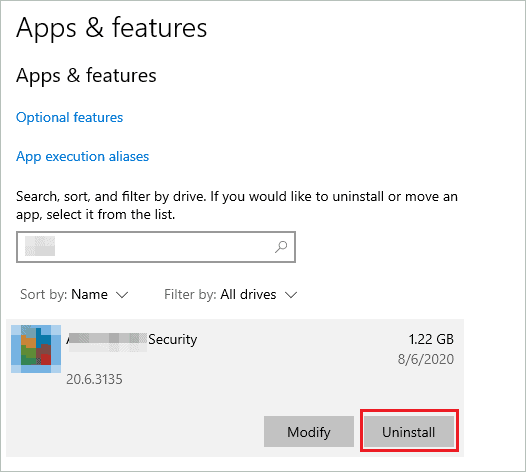
If asked for confirmation, click on Yes to continue. You can opt for other malware removal tools or get in touch with support if uninstalling antivirus fixes the issue for you.
3. Delete Temporary Files
Sometimes, the temporary files can cause trouble while accessing the virtual box, apps, and folders. You can delete the temporary files to fix error code 0x80004005 and access everything on your computer.
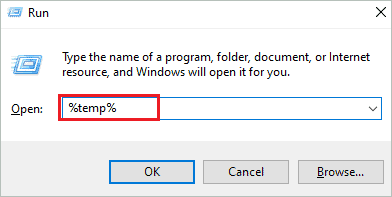
Press Windows key + R to open Run and type %temp% there. Press Enter key to open the Temp folder.
In the Temp folder, press Ctrl + A to select all the files and right-click to open the context menu. Click on Delete.
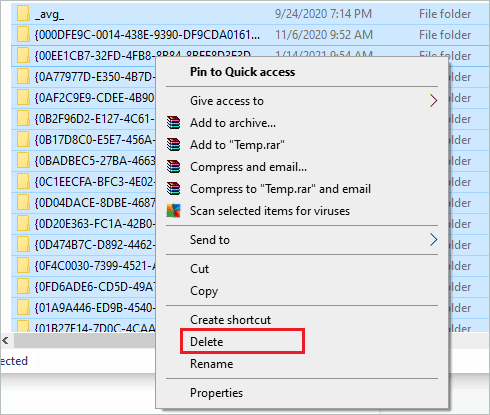
You need to empty the Recycle Bin as well after this. Once everything is done, check if the Windows error code 0x80004005 vanished from your system.
4. Perform an SFC Scan
The error 0x80004005 can be caused by corrupt or damaged system files on your PC. You can use Windows SFC (System File Checker) utility to scan and fix the damaged system files.
You need to execute the sfc /scannow command in the Command Prompt terminal to use this utility. Make sure you run Command Prompt as an administrator to execute the mentioned command. If any file is corrupted the SFC scan will fix it for you.
5. Perform a Clean Boot
If any third-party application files are conflicting with system files, you can get error messages saying Unspecified error. You can perform a clean boot to disable all third-party services and applications.
Type msconfig in the Start menu and open System Configuration from the search results. Now, make sure you are in the Services tab.
Uncheck the checkbox next to ‘Hide all Microsoft services’ and click on the Disable all button. This will disable all third-party services.

Next, go to the Startup tab and click on Open Task Manager.
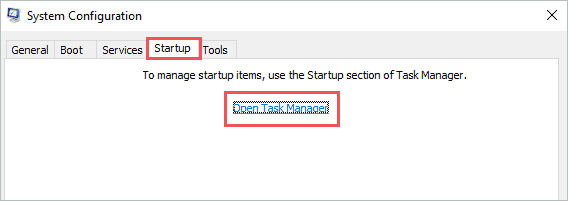
In the Task Manager window, check the apps/services which are not important or have High Startup impact. Click on each of such applications and then click on Disable. You need to do this for all the apps/services which need to be disabled.
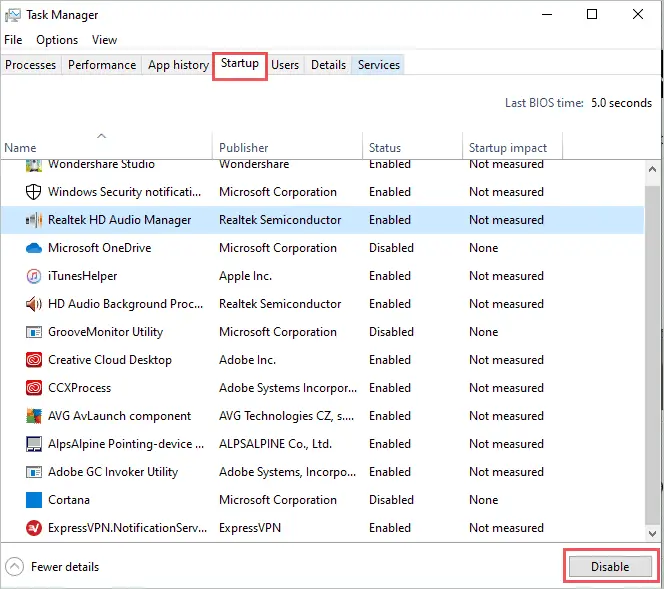
Now, reboot your computer. If the error disappears after a clean boot, it means the third-party application is causing some issue. You need to enable the services/applications one by one to find the culprit.
6. Scan for Virus and Malware
The viruses and malware in your PC can prevent you from using the normal functionalities and features of the computer. You need to get rid of them as soon as possible.
As the third-party antivirus is uninstalled in the previous solution, you can use Windows Defender Security to scan and remove the virus.
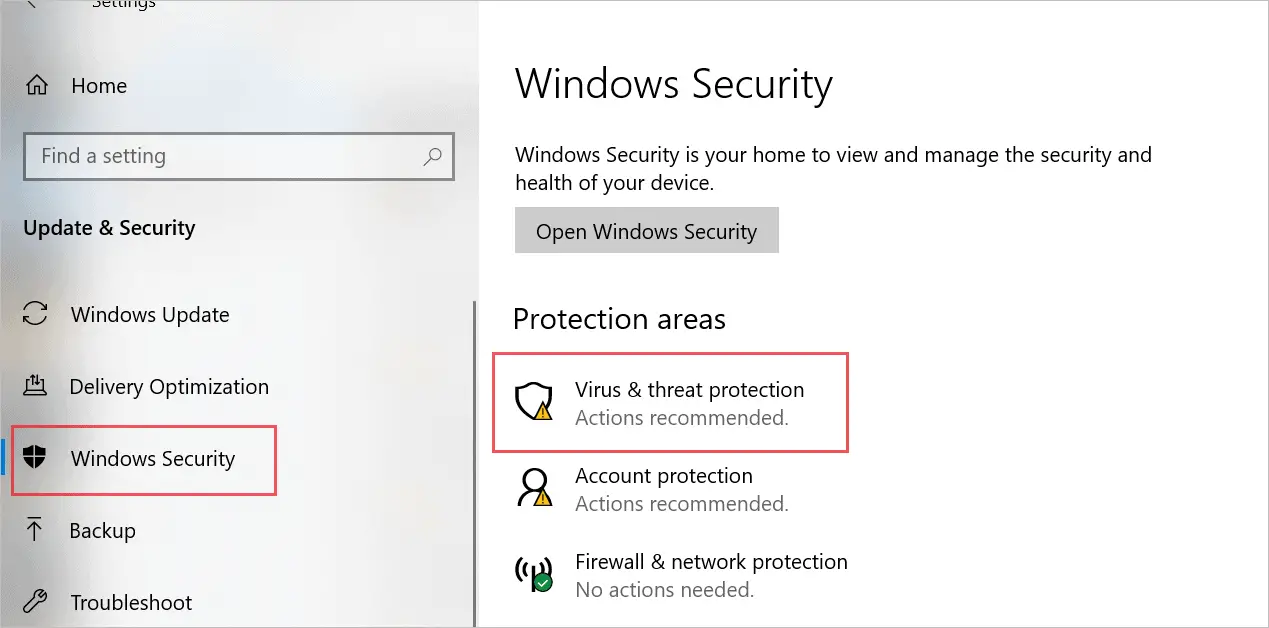
Launch the Settings app and go to the Update & Security section. Navigate to Windows Security from the left panel and click on Virus & threat protection.
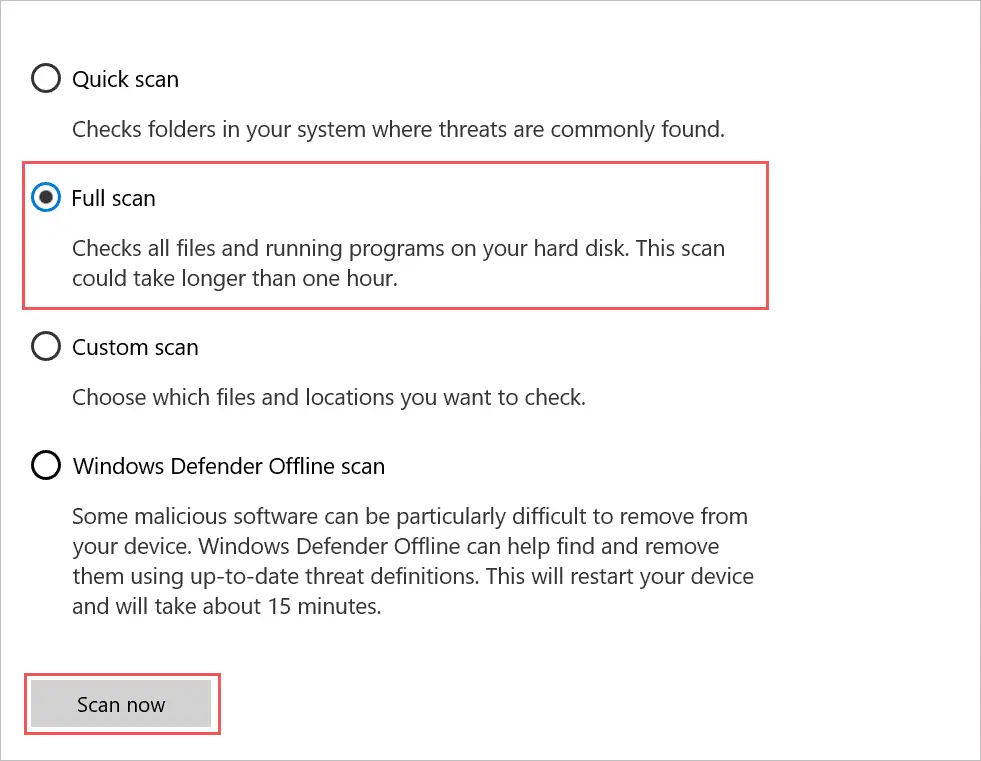
Click on Scan options and then select the Full scan option. Click on Scan now button to begin the scan.
Post the scan, perform the same task giving error, and check if removing the virus fixed the issue.
7. Disable Outlook Mail Notifications
If Outlook is giving you the 0x80004005 error, you can try disabling the mail notifications for it.
To do so, launch the Outlook app. If you cannot open it without error, open Run and type outlook /safe there. Press Enter to open Outlook in safe mode.
Once the Outlook window opens, go to the File menu and click on Options. On the next window, click on Mail from the left panel and uncheck the checkbox next to ‘Display a Desktop Alert.’
This will stop the Outlook mail notifications and fix the Outlook error as well.
8. Use Another User’s Account
Sometimes, the issue and error are related to only one user account on your PC. You can switch to another user account and check if this can fix the error 0x80004005. If there is only one account currently available, you can add another user account to your computer and switch to it.
Fix Unspecified Error During Windows Update
Some users experience error code 0x80004005 while updating Windows or viewing update history. You can fix it by going through the solutions given below.
1. Run Windows Update Troubleshooter
You can run a Windows Update troubleshooter to let Windows fix the issue for you.
Go to Settings ➜ Update & Security and click on Troubleshoot from the left frame to run the troubleshooter. Next, click on Additional troubleshooters.
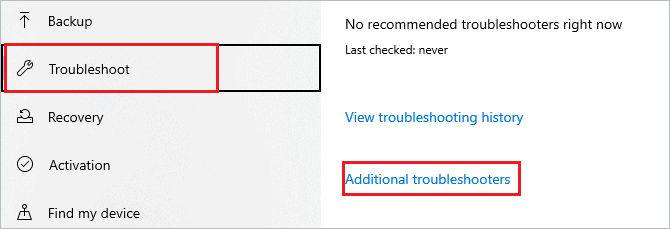
On the next window, find the Windows Update and click on it. Click on the Run the troubleshooter button.
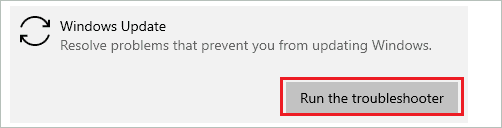
Now, let Windows find and fix the update-related issue along with error 0x80004005.
2. Delete Windows Update Download Folder
If the downloaded update is corrupted, you can experience error 0x80004005 while performing a Windows update. You can delete the downloaded files and then try updating Windows again.
Open File Explorer and go to –
C:\Windows\SoftwareDistribution\Download Now, select all the files/folders in the Download folder by pressing Ctrl + A and then press the Delete button. This will delete everything from the Download folder.
Later, you can download the update again to begin with the update process and check if the Windows update error is fixed with this.
3. Restart Update Related Services
You can restart the update-related services to fix the error 0x80004005. Restarting the services can fix the temporary issues and start the services which are not running currently.
Type cmd in the Start menu and run Command Prompt as administrator.
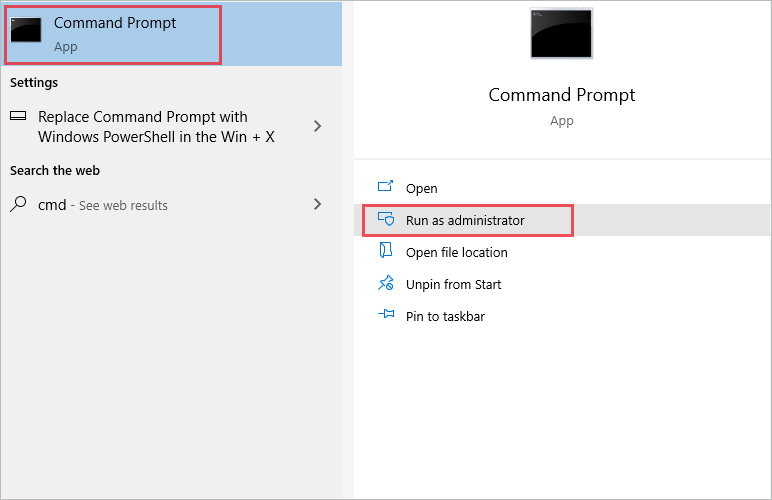
In the Command Prompt terminal, type in the following commands one by one and press Enter key after each command.
net stop wuauservnet stop bitsnet stop trustedinstallernet stop appidsvcnet stop cryptsvcThis will stop the running services; you need to execute the following commands to restart the stopped update services.
net start wuauservnet start bitsnet start trustedinstallernet start appidsvcnet start cryptsvcNow, check if you are able to update Windows.
4. Manually Install the Update
If nothing from above helped you in fixing the Unspecified error while updating Windows, you could try manually performing an update.
You need to know the Knowledge Base (KB) number of the update before you begin the manual installation process.
Go to Settings app ➜ Update & Security ➜ Windows Update and there check the KB number of the update.
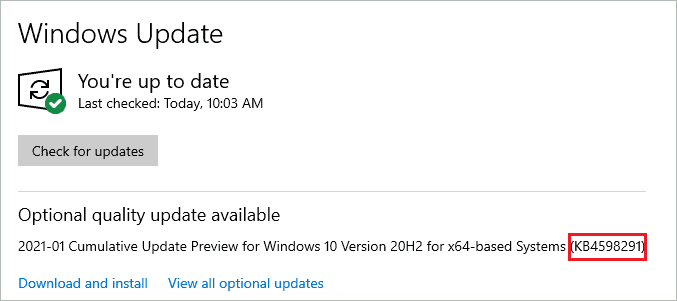
Now, go to Microsoft Update Catalog and enter the KB number in the search box. All the related updates will be shown; you can download the required update.
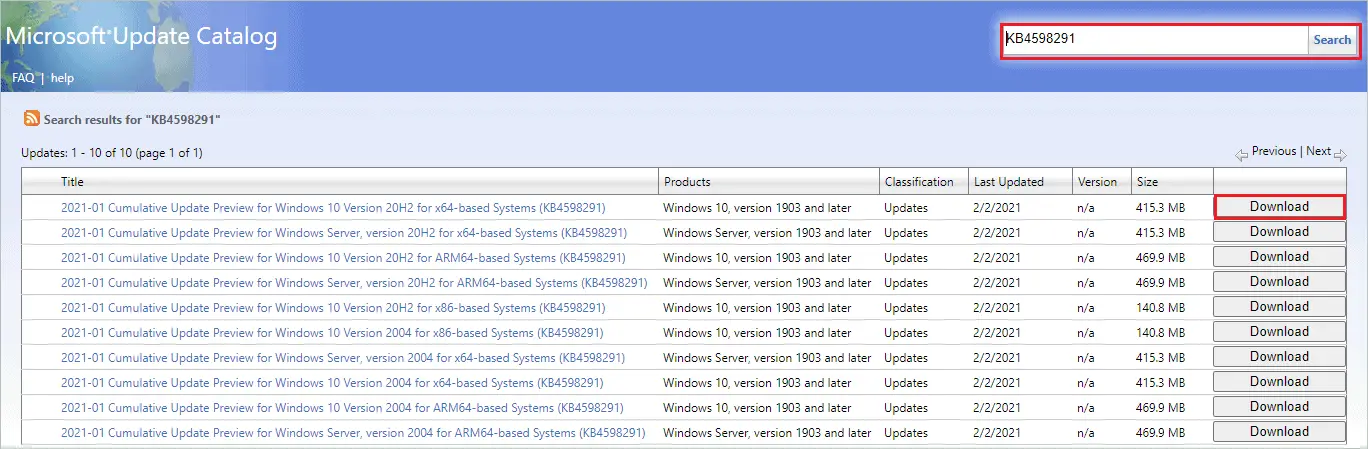
Once the file is downloaded, you can run it to install the update.
Fix Error 0x80004005 While Accessing Files/Folders
The Unspecified error can pop up while accessing, editing, renaming, or deleting the file/folder. You need to take ownership of the folder or modify the registry to fix it.
1. Run File and Folder Troubleshooter
You can run files and folders troubleshooter to fix the issue related to it. However, this troubleshooter is not available in the Settings app and needs to be downloaded separately.
Go to the official Microsoft website and download the troubleshooter. Once the file is downloaded, run it. If you are not logged in with an administrator account, you will need administrator credentials to run the downloaded file.
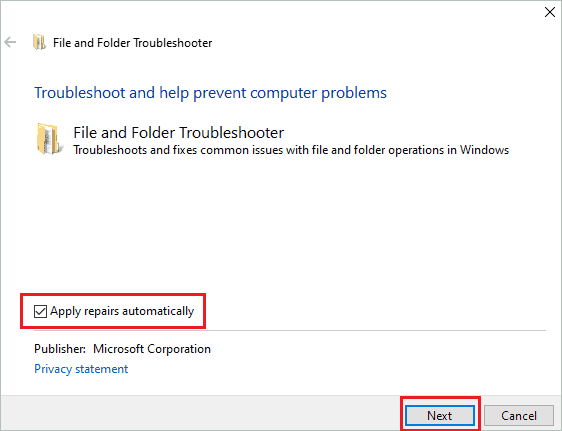
Click on the Advanced link on the troubleshooter window and then check the checkbox next to ‘Apply repairs automatically.’
Click on Next.
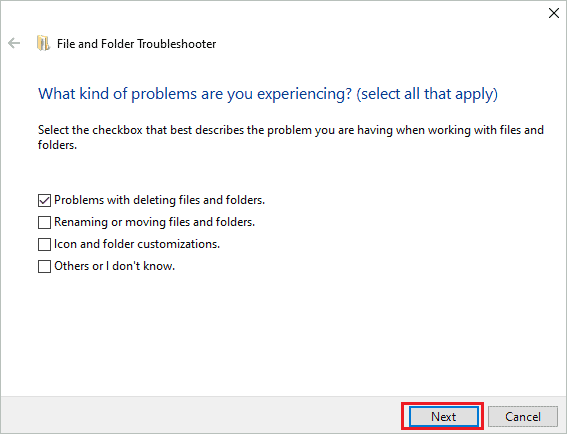
On the next window, select the issues you are facing with the files/folders. It can differ in the case of different users. And then click on Next.
Now, let Windows diagnose the issue and automatically repair it. Once the process is finished, check if you can perform the required action on files/folders.
2. Take the Ownership of the File/Folder
If you don’t have the ownership and full control of the file/folder you are trying to modify, there can be errors like 0x80004005 popping up. Well, this can only apply if you have issues with some folders and not the entire File Explorer. Follow the steps below to take ownership of the folder.
Step 1: Right-click on the folder giving issue and click on Properties.
Step 2: Next, go to the Security tab and click on the Advanced button.
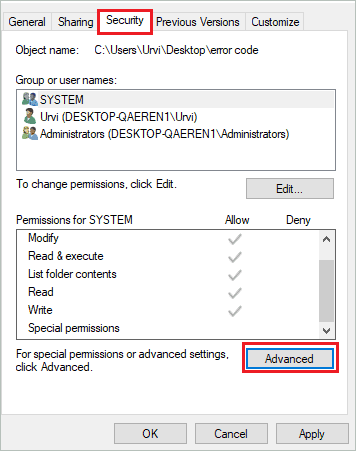
Step 3: Click on the Change link next to Owner.

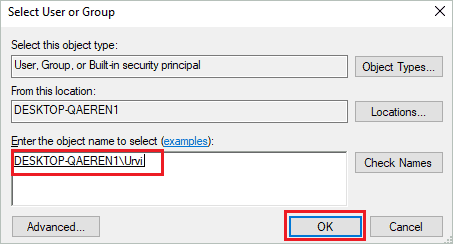
Step 4: Now, on the Select User or Group window, add in your Account name and click on Check names to confirm once. Click on OK.
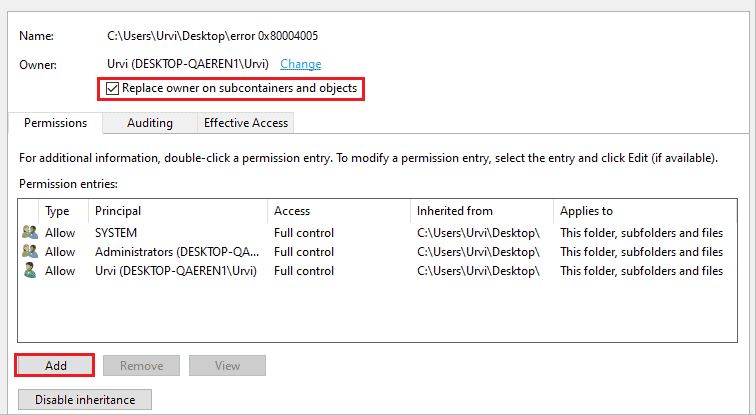
Step 5: Once you come back to the Advanced Security Settings window, check the checkbox next to ‘Replace owner on subcontainers and objects’ and then click on Add button.
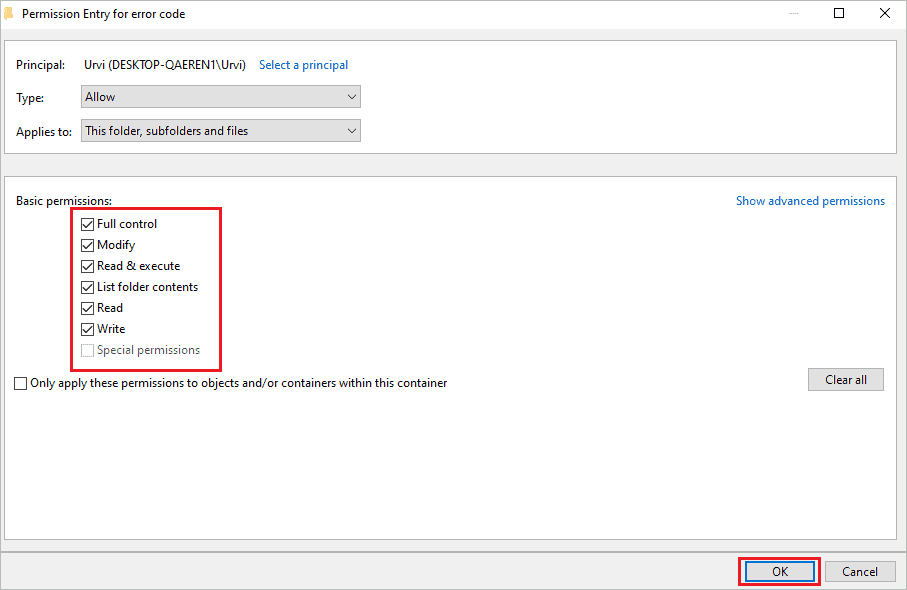
Step 6: Click on Select a principal link next to the Principal and check the Full control checkbox below the Basic permissions. Click OK.
Now save and apply all the changes and check if you can access the file/folder without any error message.
3. Modify Registry
Users experience error 0x80004005 while accessing shared drives and folders. In such a case, you can modify the registry by adding a value to it. You can back up the registry before making any changes to it.
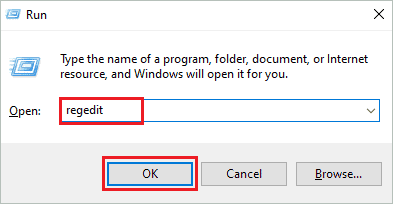
Now, press Windows key + R to open Run and type regedit there. Press Enter to open the Registry Editor.
In the Registry Editor, navigate to –
HKEY_LOCAL_MACHINE\SOFTWARE\Microsoft\Windows\CurrentVersion\Policies\SystemNow, create a new value in the System folder. Next, right-click on the empty space on the right panel, and select DWORD for 32-bit OS and QWORD for 64-bit OS.
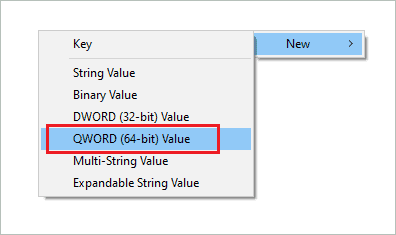
In both cases, name the new value as LocalAccountTokenFilterPolicy. And then double-click on the LocalAccountTokenFilterPolicy to change its Value data.
Change the Value data to 1 and click on OK to save it.
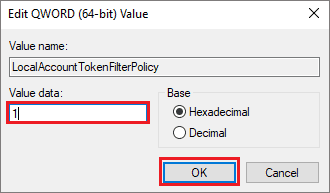
After the changes are made to the Registry, reboot the PC and check if you can access the shared folder without any conflict.
Fix Error 0x80004005: Unspecified Error In Zip Folders
If you are having issues while extracting the ZIP file and folder, you need to perform the following solutions on your Windows 10 PC.
1. Re-register jdscript.dll and vbscript.dll
You can fix the error 0x80004005 popping up while unzipping the folder by re-registering the (Dynamic Link Libraries) DLL files.
Open Command Prompt with administrator privileges and execute the below commands one by one.
regsvr32 jscript.dllregsvr32 vbscript.dllAfter both the commands are executed, check if you can access the Zip folder.
2. Use Another Unzip Application
If re-registering a DLL file didn’t fix the issue, you could use some other unzipping software to access the compressed file and zipped folder. There are many options available on the web; make sure you download from an authorized source.
Fix For VirtualBox 0x80004005 Error
If you cannot open the VirtualBox or virtual machine session because of the Unspecified error, you need to tweak the registry and network settings to fix it.
1. Delete Registry Key
You can delete the registry key to fix the VirtualBox-related issue. Follow the steps given below to know which registry key needs to be deleted.
Step 1: Open Registry Editor by searching for it in the Start menu.
Step 2: Navigate to –
HKEY_LOCAL_MACHINE\SOFTWARE\Microsoft\Windows NT\CurrentVersion\AppCompatFlags\LayersStep 3: Now, check if you can find ‘C:\Program Files\Oracle\VirtualBox\VirtualBox.exe”=”DISABLEUSERCALLBACKEXCEPTION’ key in the Layers folder.
If it is present, delete it.
You can reboot the PC for changes to take effect and then check if you are able to open VirtualBox.
2. Enable VirtualBox NDIS6 Bridged Networking Driver
You need to enable VirtualBox NDIS6 Bridged Networking Driver in order to fix error 0x80004005 while accessing VirtualBox/virtual machine.
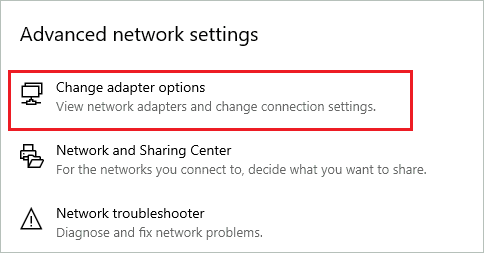
Open Settings app and go to Network & Internet. Ensure you are in the Status section and then click on Change adapter options under Advanced network settings.
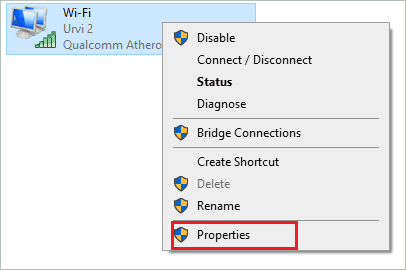
When the Control Panel window opens, right-click on Virtualbox host-only and select Properties from the context menu.
Now, check the checkbox next to Virtualbox NDIS6 Bridged Networking Driver and click on OK. This will enable the required driver for VirtualBox access.
If you cannot access the VirtualBox, follow the same steps to enable Virtualbox NDIS6 Bridged Networking Driver in WiFi and Ethernet adapters.
Fix Error 0x80004005 While Accessing Network Components
If you are experiencing an Unspecified error while accessing network-related components, you need to make changes in the network settings. The below solutions will guide you through the required changes in the network settings.
1. Disable IPv6
You can disable IPv6 to fix the error 0x80004005.
To do so, go to Settings ➜ Network & Settings and then click on Status from the left panel. Next, click on Change adapter options.
Now, right-click on the connected network. It can be WiFi or Ethernet, depending on your connection. And select Properties from the context menu.
Stay in the Networking tab and uncheck the checkbox next to Internet Protocol Version 4 (TCP/IPv6). Click on OK.
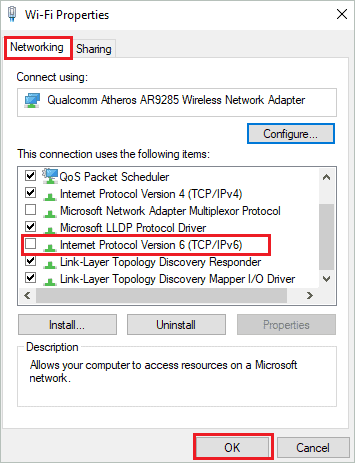
You can now check if the error 0x80004005 vanished post this or not.
2. Make Sure the Services are Running
Some services are essential for the smooth running of network-related components. You need to make sure all the below-mentioned services are running without any issues.
Search for Services in the Start menu and open the same from the search results. In the Services app, search for the below-mentioned services and check if they are running.
Function Discovery Provide Host.
Function Discovery Resource Publication.
SSDP Discovery.
UPnP Device Host.
DHCP Client
DNS Client.
If any service is not running, right-click on it and click on Start. Once the services Start running, you can check if the error message is fixed or not.
If the mentioned services are already running, you can jump to the next solution.
3. Change SMB 1.0 Feature Settings
The following changes in SMB 1.0 feature settings can help you fix error 0x80004005.
Open Control Panel and click on Programs.
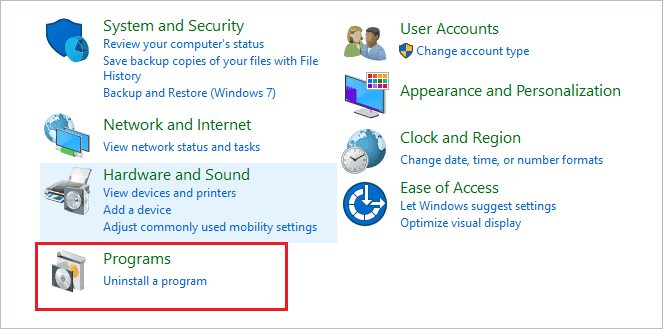
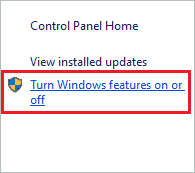
On the next window, click on Programs and Features. Now, on the left of the screen, click on Turn Windows features on or off.
In the Windows Features dialog box, scroll down to find SMB 1.0/CIFS File Sharing Support and expand it.
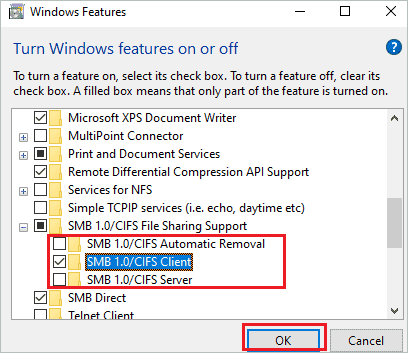
Now, uncheck the checkbox next to SMB 1.0/CIFS Automatic Removal and SMB 1.0/CIFS Server. You need to check the checkbox next to SMB 1.0/CIFS Client.
Click on OK, and reboot your computer.
4. Turn Off Password Protected Sharing
Many users fixed the error 0x80004005 by turning off password protected sharing.
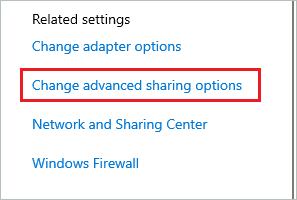
To do so, go to the Settings app ➜ Network & Internet ➜ Wi-Fi and click on Change advanced sharing options under Related settings.
Now, expand All Networks and select the Turn off password protected sharing option. Lastly, click on Save changes.
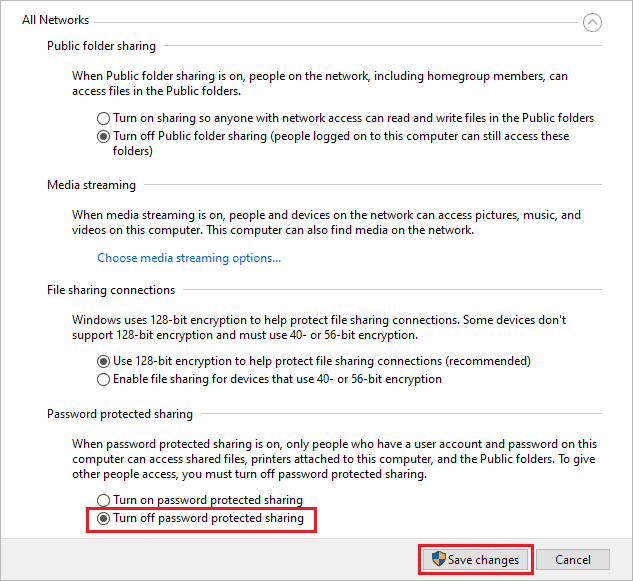
You can now check if the Unspecified error is resolved with this.
5. Uninstall Microsoft 6to4 Adapter
If you are still experiencing Unspecified error: 0x80004005, you can uninstall Microsoft 6to4 adapter from Device Manager.
Press Windows key + X and click on Device Manager to open it. Now, click on View and then on Show hidden devices.
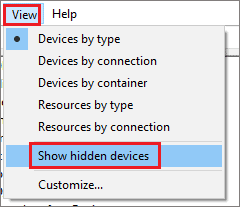
Next, expand the Network adapter and uninstall all the Microsoft 6to4 adapters. After uninstalling the said adapters, reboot your PC and check if the error is resolved with this fix.
Conclusion
The Unspecified error in Windows 10 is rare, but it can be annoying whenever you start experiencing it. The error is unspecified, making it difficult to find a solution, and also, you can have this error while performing different tasks on your Windows 10 PC. With the above guide, you can try fixing error 0x80004005 based on the different scenarios.
The list of solutions is long because there is not one single solution that can work under different scenarios in which error is experienced by users. You will need little technical knowledge to perform the fixes mentioned above.