

Key Takeaways
- Google Drive is a reliable cloud service that can safely store confidential data.
- As an added security layer, you can password protect Google Drive folder.
- The authorized users must provide the password to open these folders and access the data.
Google Drive as a cloud storage service is not entirely flawless. So, there is a need to password protect Google Drive folder to ensure that your sensitive files and folders are secure. However, it must be mentioned that you cannot directly set a password for your folders but use different methods to get the same effect.
The entry point to your Google Drive cloud service is your Google account. The absence of individual password protection poses a threat to all your drive files if your Google account gets hacked. So, we can start by adding an extra layer of security to the account with a strong password and move on to give restricted access to your business files. If you are bored with the bright background of the drive, try Google Drive dark mode.
How To Password Protect Google Drive Folder
Any data stored on a cloud-based storage service like Google Drive is not completely secure. However, when you password protect Google Drive folder content, you can keep the folder and files safe from intruders. When you password-protect your folder, you must use a strong password. Make it as secure as possible with a password or pin, and share your data and information.
Here are a few ways to protect your Google drive. You can password protect your google drive folder directly or indirectly before you share links to it.
Keep your Google Account Secure
Never belittle your Google Account password because it is important to your account safety. If you think of how to password protect Google Drive folder, try having a solid password for your Google account. It is not like you have direct control over any particular folder, but it is a shield to the whole account.
You can also enable two-factor authentication to prevent unauthorized access and protect sensitive data. Remember to change your password for security and privacy reasons. You can do it often so that even if someone breaks into your account, they cannot keep doing it. When you password-protect a Google drive folder, use strong passwords with a mix of numbers, alphabets, and special characters that are difficult to guess. In addition, remove Google Drive duplicate files regularly to keep your account organized. If these steps are taken, you can ensure that your account folders are safe unless you share the password with others.
Manage Access to Folders on Google Drive
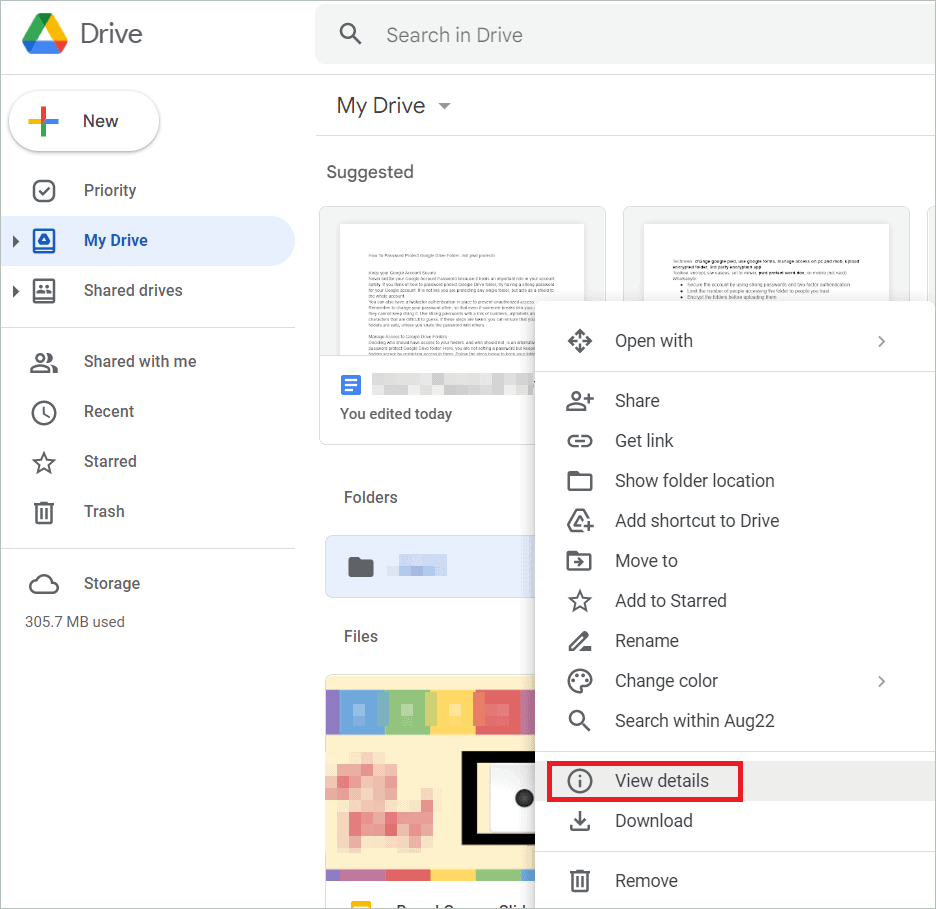
Deciding who should have folder access and who should not is an alternative to password protect Google Drive folder. Here, you are not setting a password but keeping folder protection on by access control. Follow the steps below to protect a folder in Google drive account and keep it private.
Open Google Drive and go to My Drive. Right-click on the folder you want to keep secure and select “View details” from the context menu.
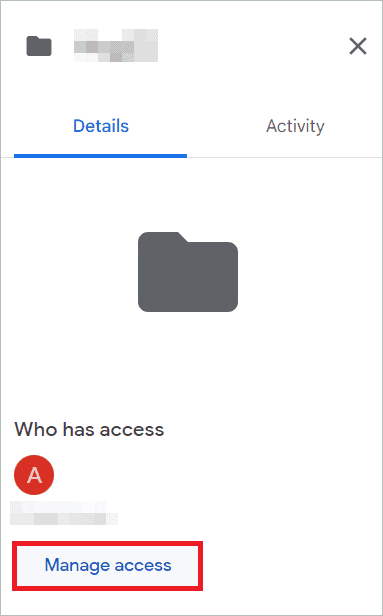
In the box that opens, click the Manage access button.
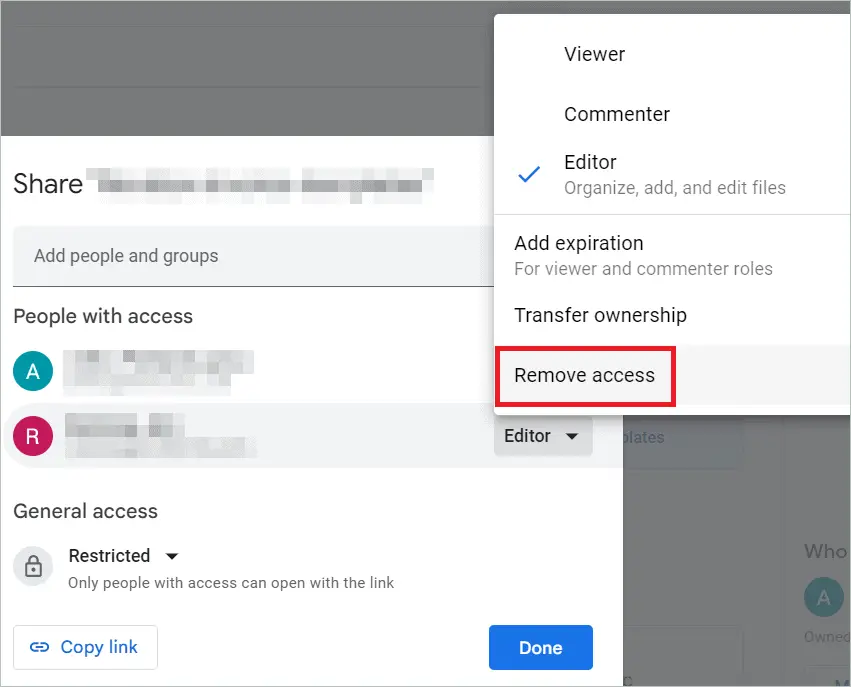
If other people have access to your folder, click on the down arrow next to the names, and select “Remove access” from the fly-out menu. Instead, you can also choose Viewer, Commenter, or Editor to assign a role to the recipient.
Select “Restricted” under General access.
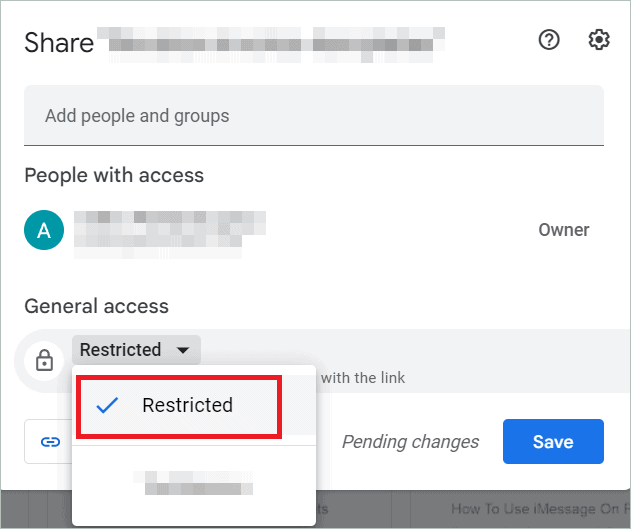
Now, your folder has become private. Share the folder with people who have access to it.
Encrypt Microsoft Office Files Before File Upload
To password protect Google Drive folder, you can also consider password-protecting the individual documents and other file types in the folder. Uploading a file with password becomes easy if you have Microsoft Office installed on your computer. Here, we will see how to add a document password to a Word file and give an extra security layer. Remember that this method cannot be used if you have thousands of files to be password-protected.
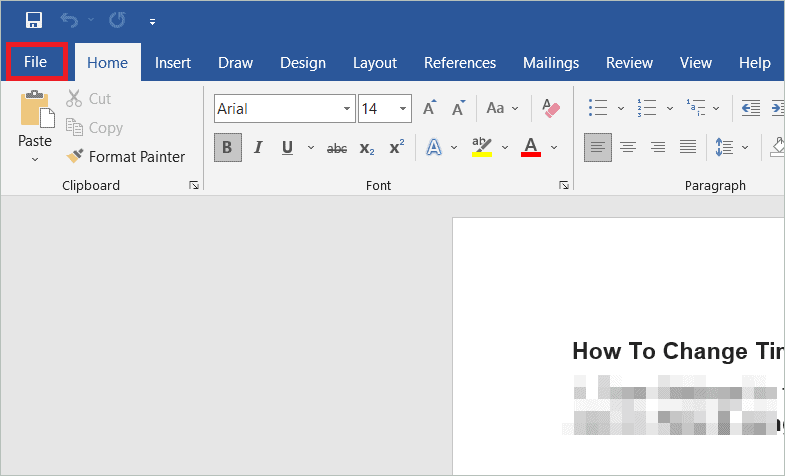
Open a Word document and click on the File tab.
Click “Info” in the left menu, and select Protect Document on the right.
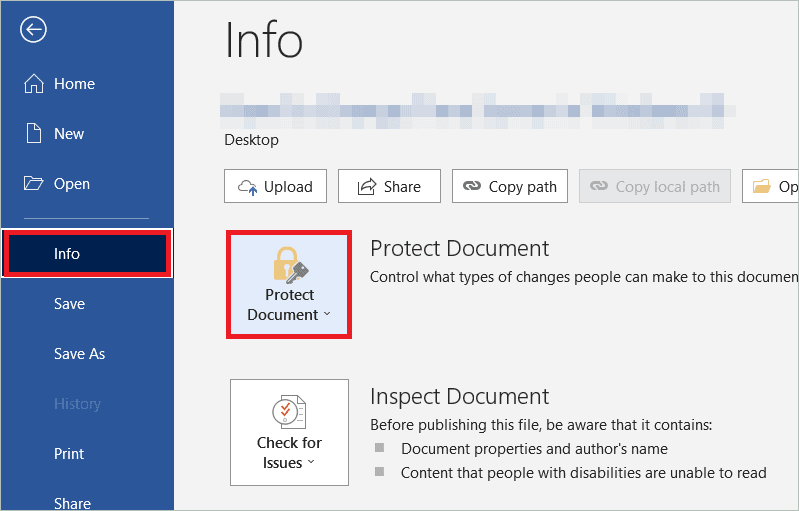
Select “Encrypt with Password” from the list that opens.

In the pop-up window, type the password in the Password field, and click “OK.”

Now, you can upload the file on Google Drive.
Password Protecting the Shareable Link using Google Forms
Using Google Forms, you can password protect Google Drive folder, but not in the traditional way. You protect a Google Form with a password and send the link to your cloud file or folder through this form. So, if the recipient needs to access the folder, he has to go through the password-protected Google Form. Let us see the steps for the same.
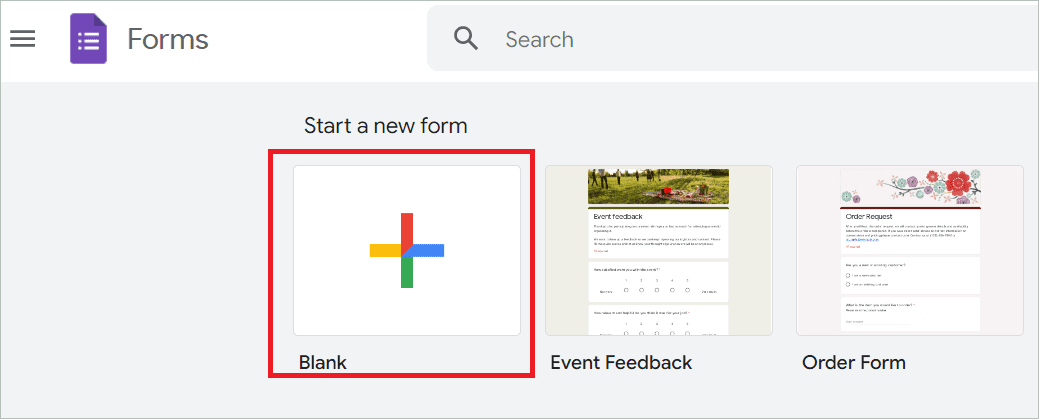
Open Google Forms and select “Blank” under Start a new form.
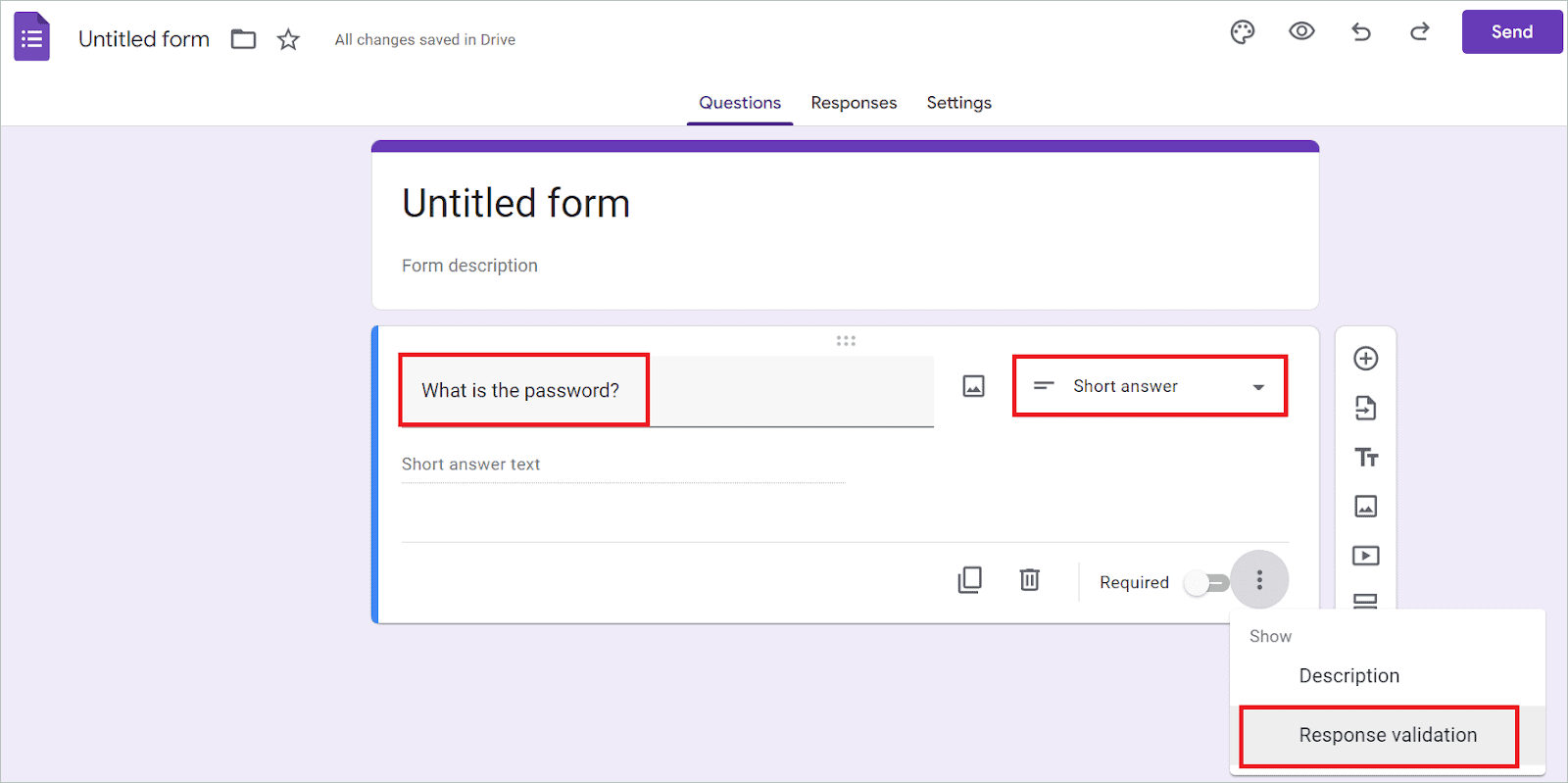
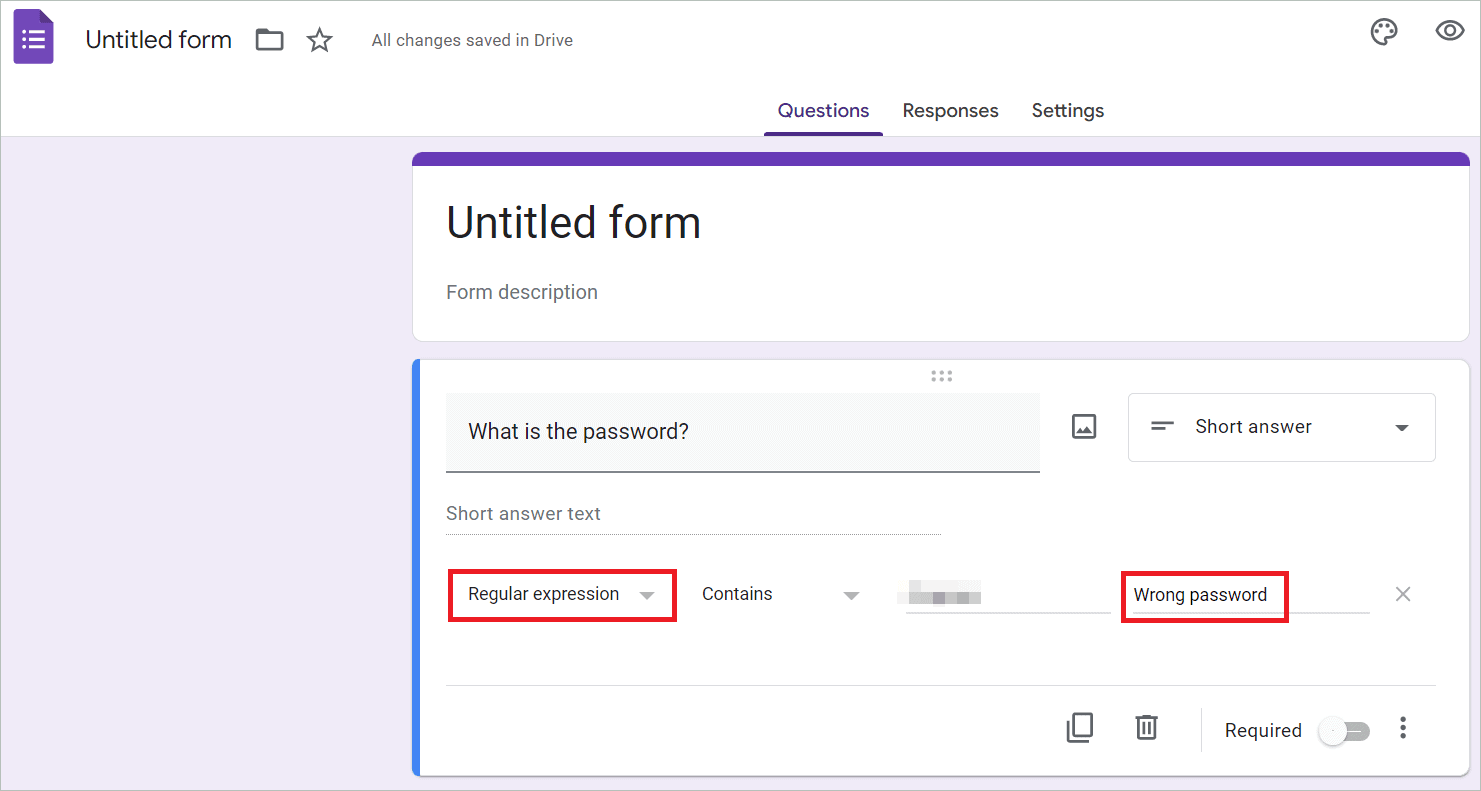
In the Untitled form, select “Short answer” from the dropdown menu. In the Untitled Question textbox, type “What is the password?” Next, click the vertical three-dot menu, and select “Response validation” in the drop-down menu.
In the first drop-down menu that appears, select “Regular expression.” Then, in the Patterns field, enter the password. In the custom error text field, enter your custom error message “Wrong password” (This message gets displayed when the recipient types the wrong password).
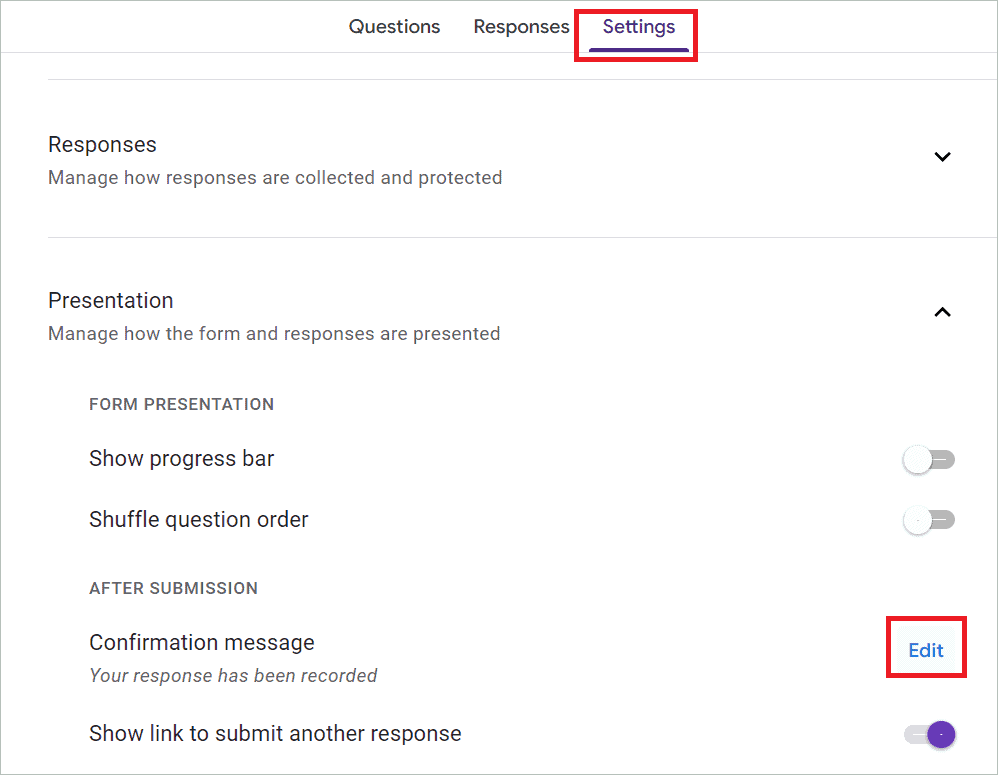
Now, select the Settings tab. Next, click “Edit” near the Confirmation message.
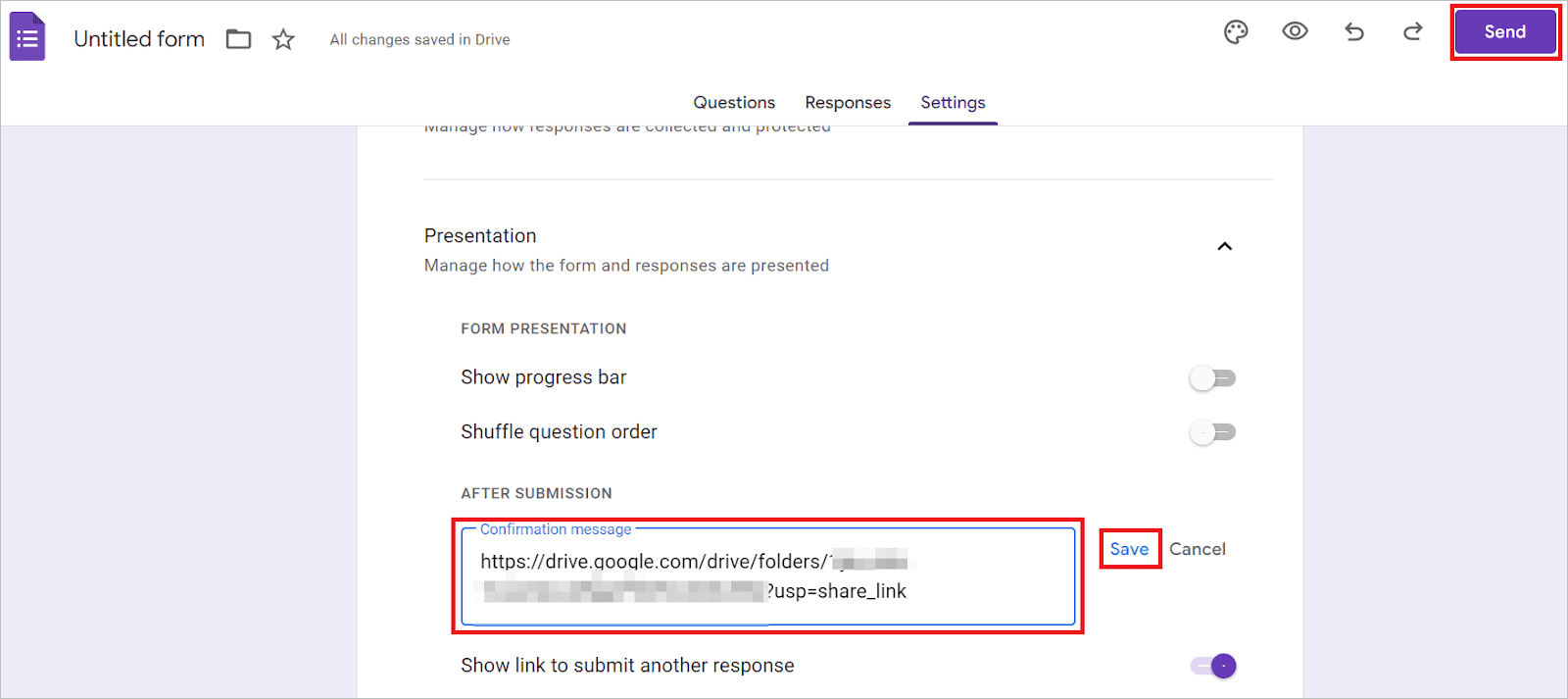
In the Confirmation message textbox, copy the link to your drive folder. Next, click “Save” and “Send” to select the recipients’ names and send the form via email.
The recipients can only open the shared folder link when they enter the correct password.
Upload an Encrypted Folder on Google Drive
Even though it may not be possible to password protect Google Drive folder with a dedicated folder lock, you can password lock the folder on your local storage and then upload it. This means you will use a password to encrypt the folder. To access the folder, the recipients need the password to decrypt. Here are the steps.
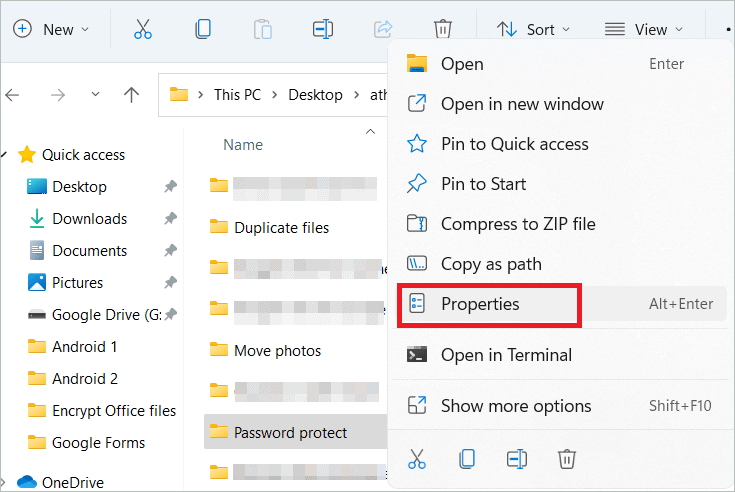
Locate the folder you want to share in File Explorer. Right-click on it and select “Properties.”
In the General tab, click the Advanced button.

Under Compress or Encrypt attributes, check “Encrypt contents to secure data” and click “OK.”
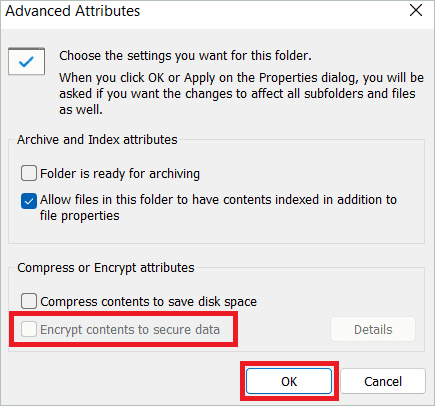
In the Properties window, click “Apply” and “Apply changes to this folder only.” Next, click “OK.” In the next screen, to back up the file encryption certificate and key, select “Backup now.” Finally, enter the password that will be used to decrypt the folder.
The folder with password is now ready to be uploaded on Google Drive.
Upload a Password Protected Zip File to Google Drive
You cannot password protect Google Drive folder by uploading a regular zip folder. However, you can specify a password for the zip folder when you download and install an archive tool called 7-Zip. Once you upload it, the person who has access to it must enter the password before unzipping. Let us see how this can be done.
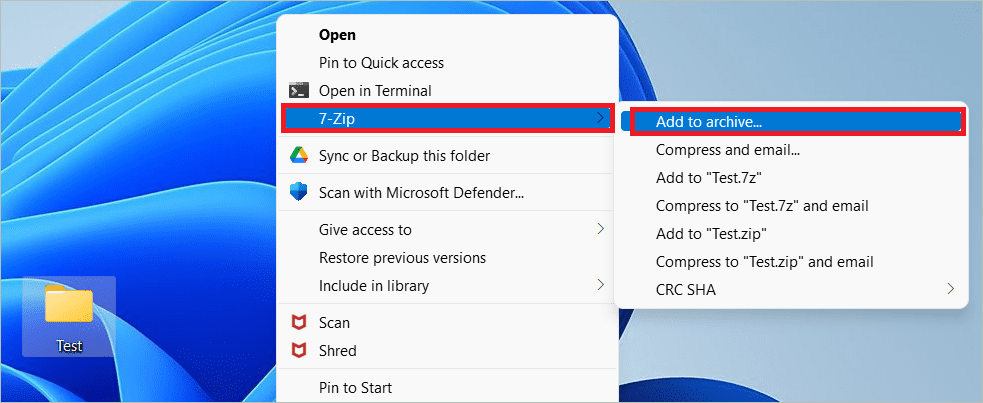
Right-click on the file or folder you want to zip and open the 7-Zip menu. Next, select “Add to archive”.
Enter your password in the password field, reenter the password, and click “OK.”
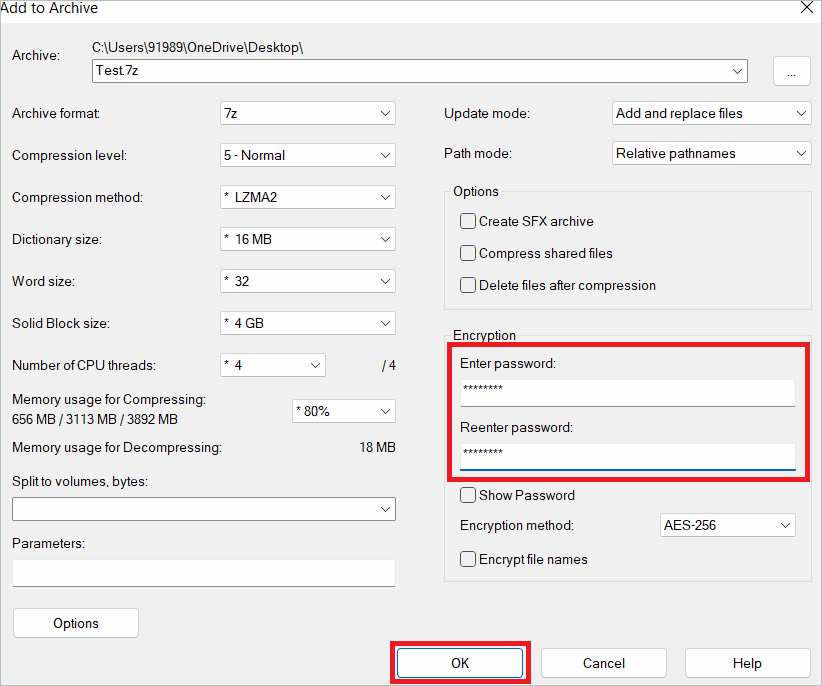
Your zip folder is now ready to be uploaded on Google Drive.
Use a Third-Party Encryption Software to Encrypt Folders
Several third-party encryption applications are available that let you encrypt your local folders the way you password protect Google Drive folder. These encrypted folders can then be uploaded as cloud folders. Many of these tools can protect your files, folders, and drives from unauthorized access. For example, EaseUS LockMyFile uses an encryption method that offers complete security to your data. The tool is best suited for business users.
Install the EaseUS LockMyFile app and register using a valid email address and password. Then, select Protecting File > Protect Folder, and add folders from your local storage that you want to password lock. In the same way, you can protect your files and drives too.

Other 3rd party software that offers similar features are VeraCrypt (it uses AES 256-bit encryption technology) and WinRAR.
Manage access to a Folder on your Android Device
If you use your Android device to access Google Drive, use this method to manage access. This is the easiest way to password protect Google Drive folder on your mobile device. There are no additional steps here, similar to the method used on your PC.
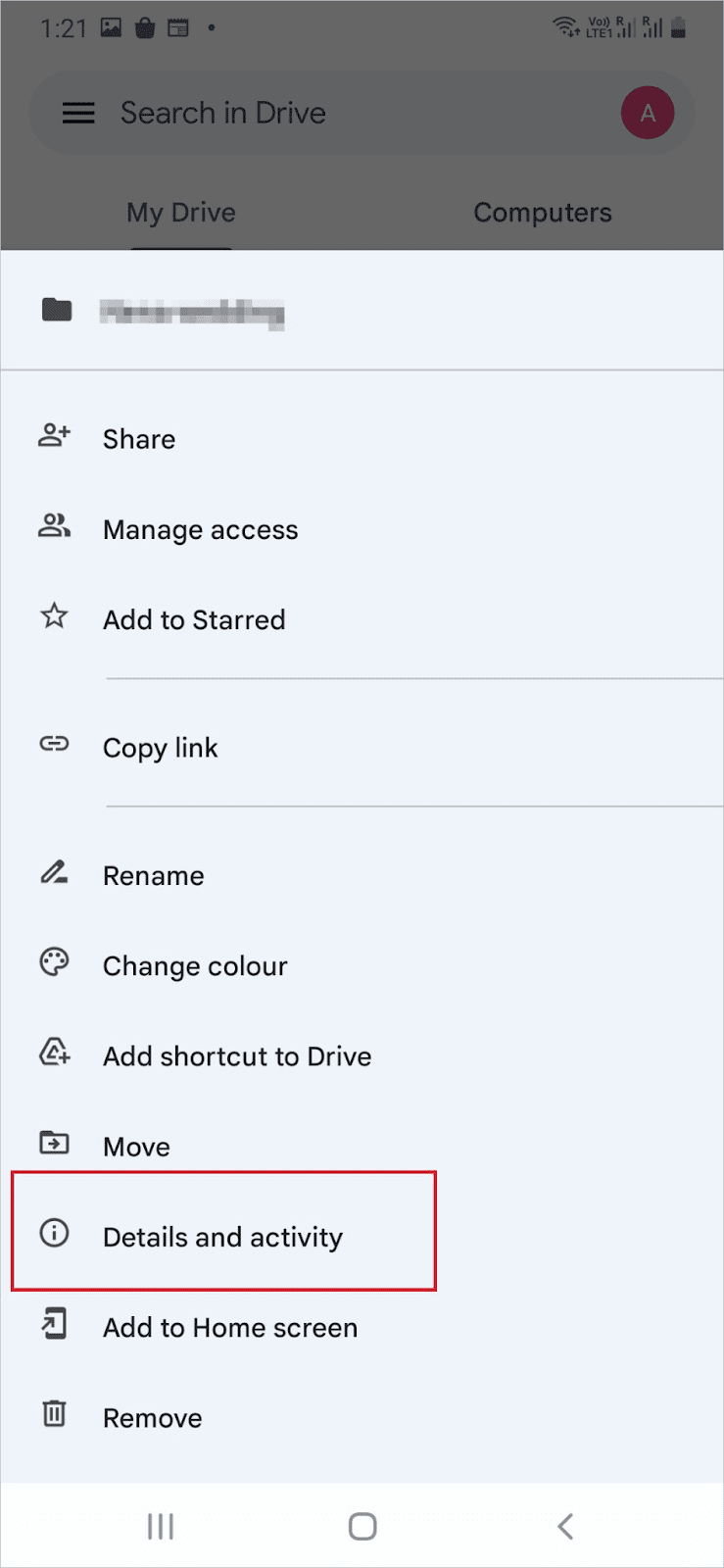
Open the Google Drive app on your Android device. Locate the folder you want to share, and tap on the vertical three-dot menu.
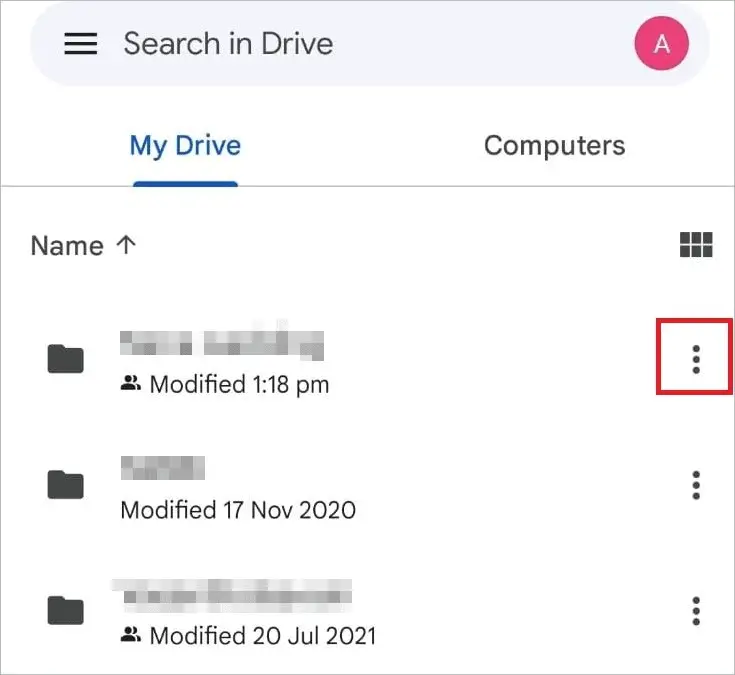
Tap on “Details and activity.”
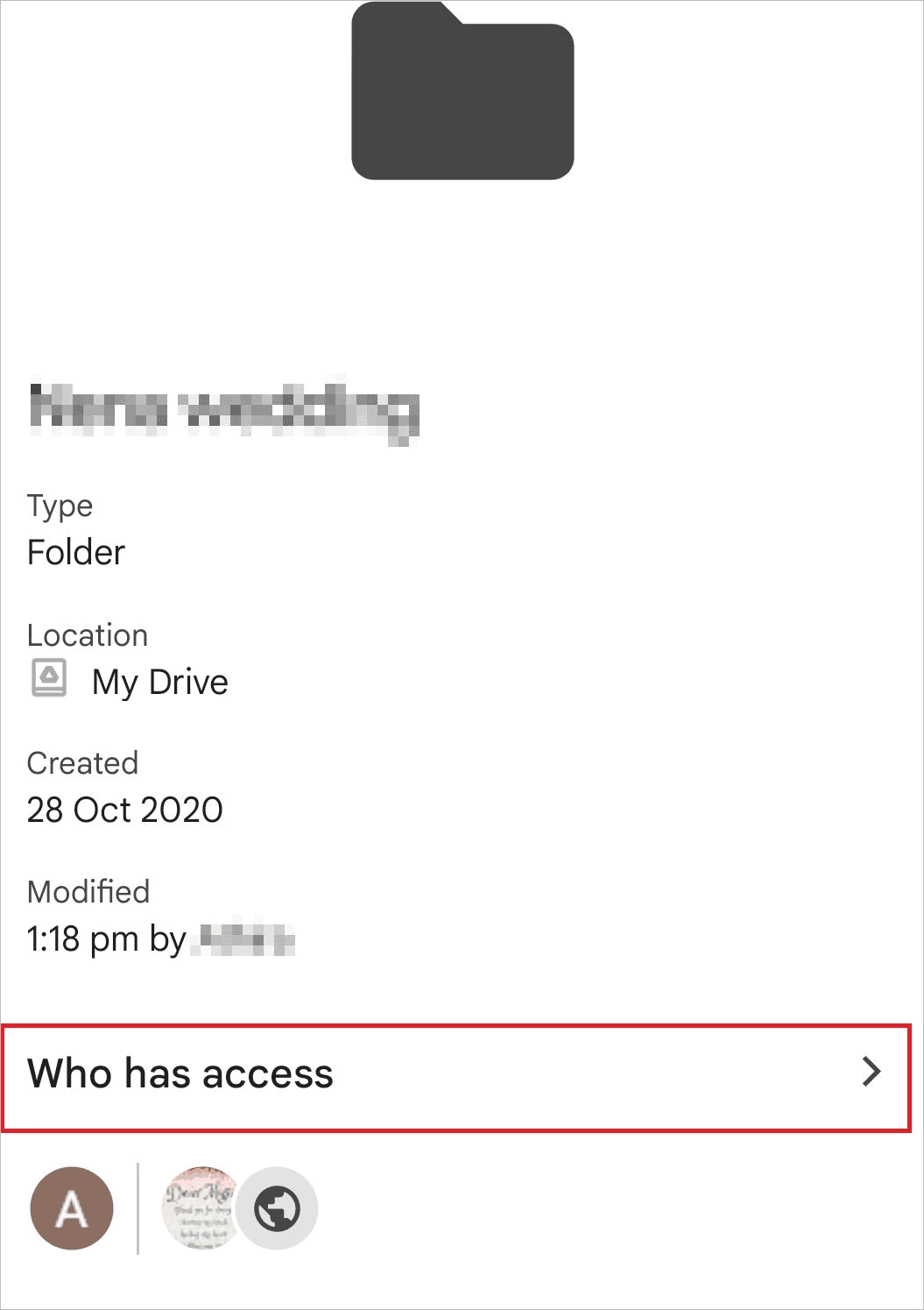
Now, tap on the arrow near Who has access.
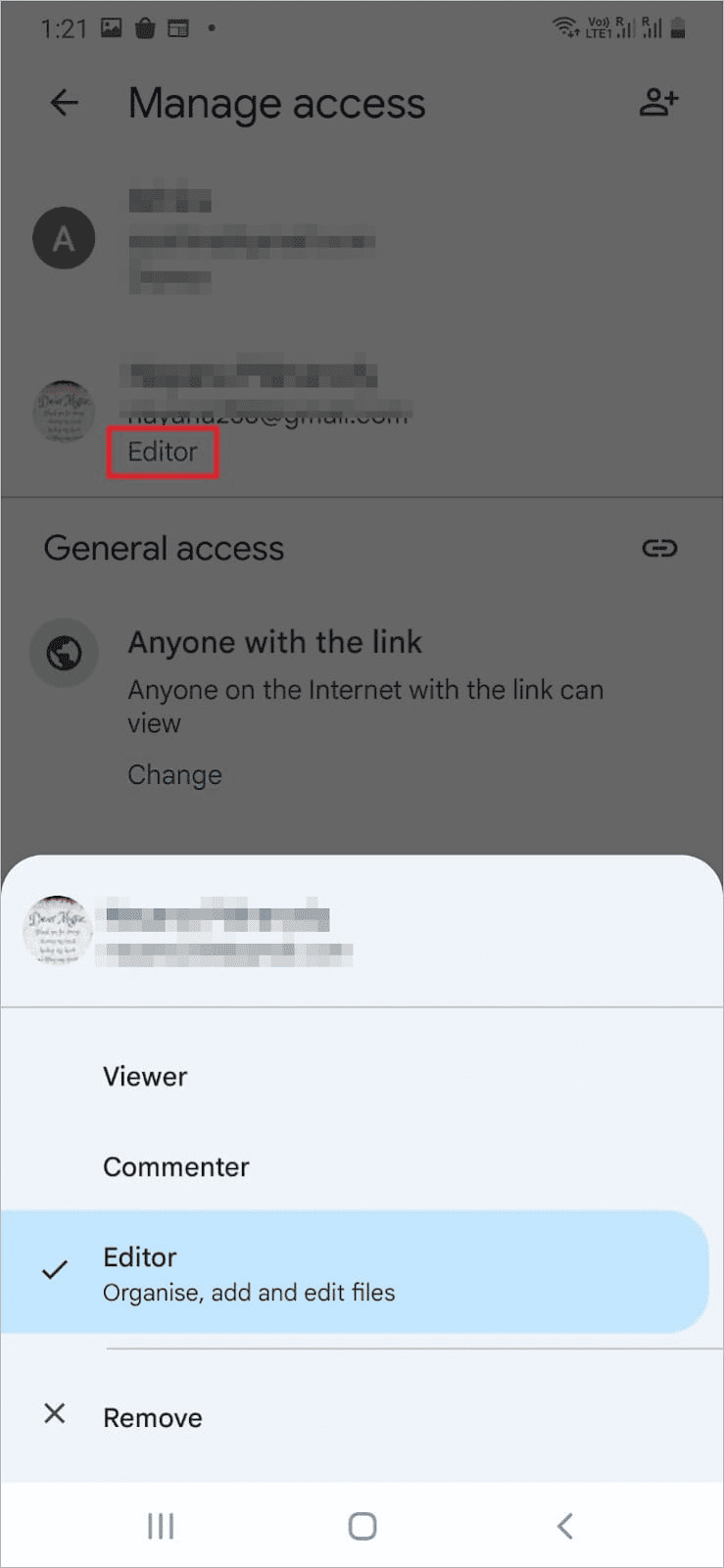
Under the person’s name, tap on “Editor” to open a menu where you can set the file access permission as a Viewer, Commenter, or Editor. You can also Remove access if needed.
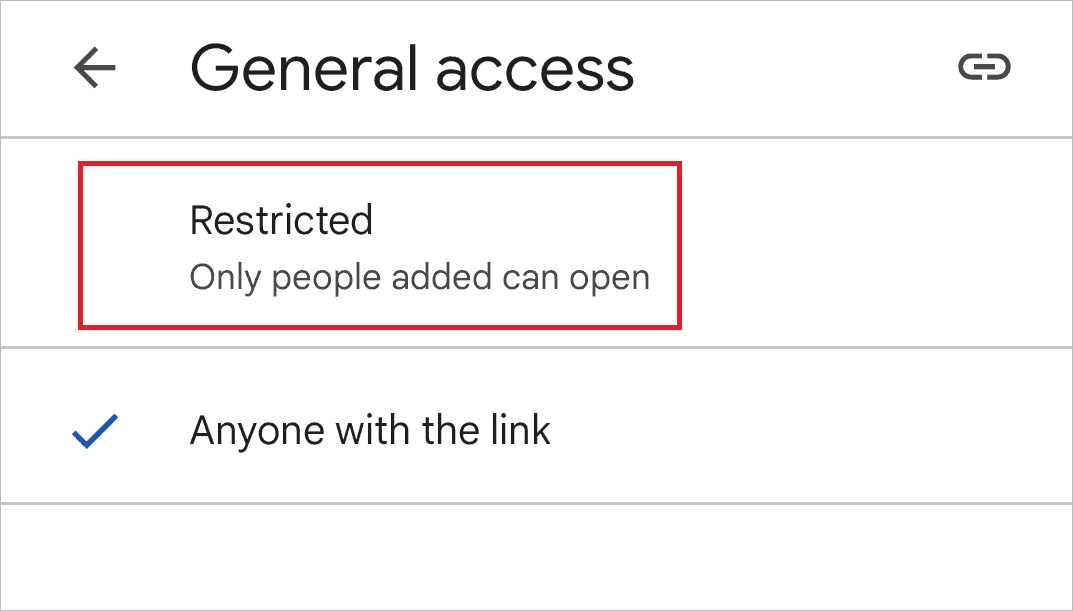
Tap on “Restricted” under General access if you want only the added people to open the folder.
Final Thoughts
Whether you access Google Drive on your computer or mobile device, there has to be a way to password protect Google Drive folder. So, when you share your folders and files with people, they must provide a password to open them. But there is no direct way to assign a folder password using the password protection feature.
You can use third-party software or manual methods that offer the same security as password protection. Remember that your Google account is the first thing you must keep secure to ensure that all the services under it are accessed only by authorized users.