

With the latest advancements in technology, everyone has a Wireless Fidelity (WiFi) connection. A WiFi connection ensures that users have access to the internet with commendable speed. When we don’t have a WiFi connection, the mobile hotspot is usually our go-to-place for an internet connection. But what if the mobile hotspot is not working?
A WiFi hotspot allows users to share an internet connection with other devices that are connected to it. Putting it simply, you can easily access the internet by connecting to a phone’s mobile hotspot. In this case, you are using cellular data; you can use the same on a Windows 10 laptop as well.
Things To Check For Before Establishing A WiFi Network
Make sure you don’t reach hasty conclusions if your cellular data network doesn’t connect to your Windows 10 PC via a hotspot. Running down through certain basics before establishing a connection is always a good practice.
- Check whether both your mobile phone and PC have been configured correctly to establish a stable internet connection.
- Next, make sure the WiFi setup is correct; people often tend to turn on the mobile WiFi instead of sharing the Wi-Fi hotspot due to similarities in symbolism.
- Last but not least, check your drivers; if they are outdated, you need to update them to establish a stable connection.
How To Fix Mobile Hotspot Not Working Issue
Suppose you are traveling to a different location, and you urgently need internet access for a crucial purpose. However, you won’t be able to do so if your Windows 10 computer cannot connect to the Wi-Fi hotspot. At times, the cellular WiFi network might also be having some problems. In that case, it’s better to check both the devices for any possible issue if the hotspot doesn’t get connected.
Here are the top solutions to know why the mobile hotspot is not working properly.
1. Create A New Hotspot Connection
If you encounter the mobile hotspot not working issue, you can opt to create a new data connection. Creating a new WiFi hotspot is a relatively simple process.
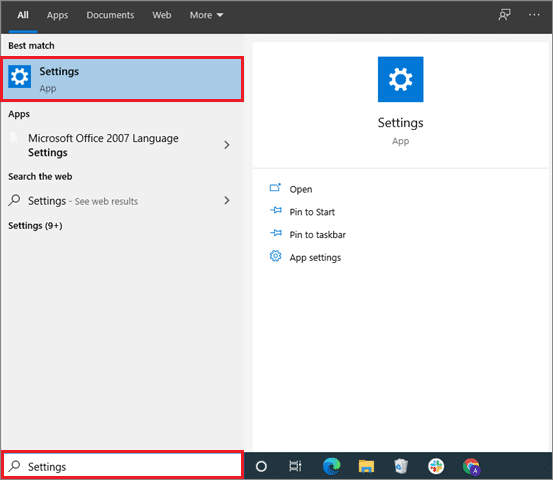
First and foremost, open the Settings app using the Start menu. You can also use the Win Key + I combination to open the Settings app.
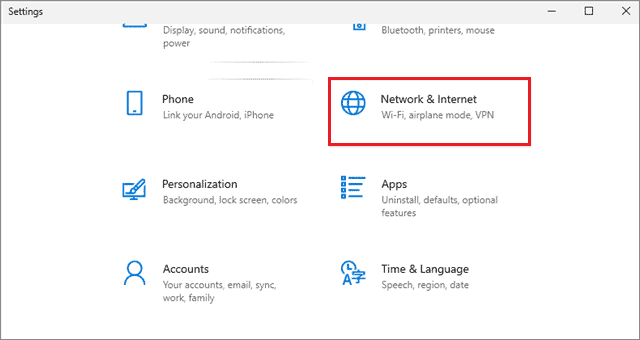
Then, select the Network & Internet.
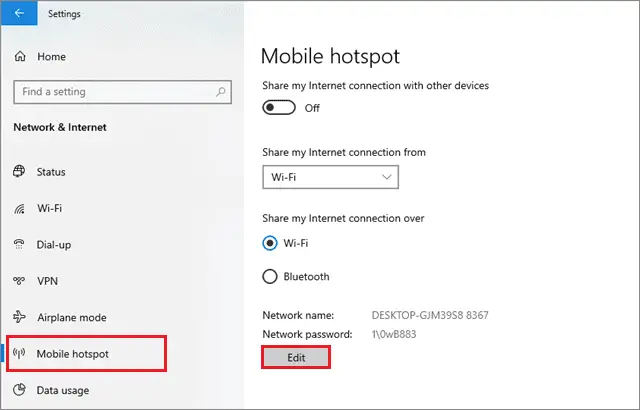
Now, click on Mobile Hotspot. You have to configure the new connection. To do so, change the name of the hotspot(SSID) and set the password by clicking on Edit.
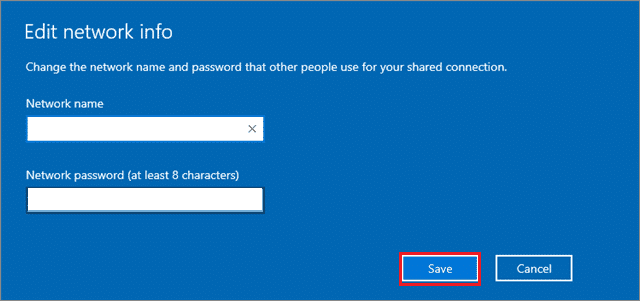
Enter your network name and password and click on Save.
Now, it’s time to share your internet connection with other users. Select the Share my internet connection with other devices option and turn it ON.
That’s all about how to create a new hotspot connection. You can use this data connection to access the cellular internet data.
2. Turn Off Firewalls
Many times, the Windows 10 mobile hotspot not working issue occurs because of the firewalls designed to block the entry of unwanted files on our computers. It is very common to see a firewall, malware, or antivirus software to block users from accessing the cellular data connection.
To fix the issue, you will have to turn off either of the three programs temporarily on your computer to allow a seamless connection to your mobile Wi-Fi hotspot. Once you have established a stable connection, make sure you turn on the firewall to prevent the entry of unwanted files and viruses.
3. Check the Network Drivers
Running a thorough check through network drivers is one of the most common steps to be undertaken whenever internet connectivity issues occur. Make sure you keep your drivers updated. If the mobile data hotspot is not working properly, you can opt to download and install a new set of drivers from the manufacturer’s website.
4. Update The Network Adapter Driver
WiFi hotspot connectivity problems can frequently occur if your network adapter driver isn’t updated. At times, some drivers are configured specifically for an older Windows version. If that is the case, it becomes necessary to update them for proper compatibility.
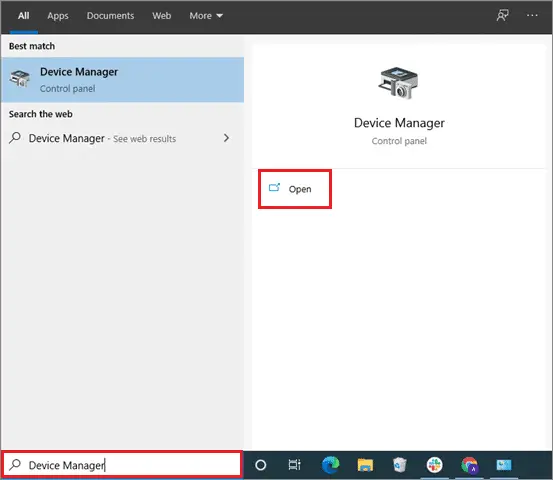
To begin with, open the Device Manager from the Start menu.
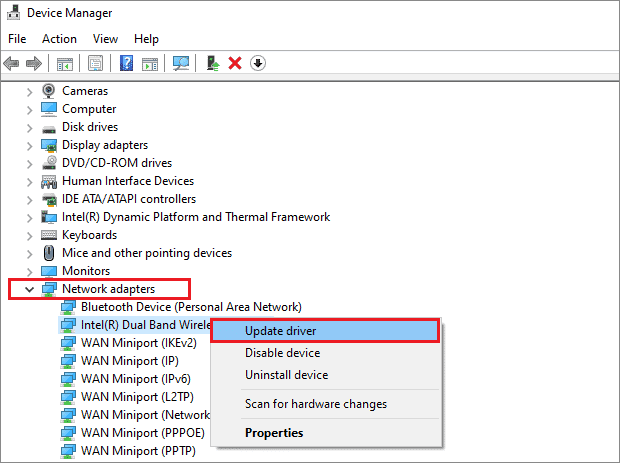
Then, select the Network Adapters. There’s a bunch of drivers under this section. Right-click on any of the drivers and click Update driver.
After updating the drivers, it is necessary to restart the PC so that the newly installed drivers will start working immediately. If you cannot find or connect to a driver, you can download it from another PC, save it on a flash drive, and install it on your system. If this method doesn’t answer the ‘Why is my hotspot not working?’ question, move on to the next solution.
5. Roll back the Network Driver
Roll backing a driver means switching to a previous version. Whenever you encounter the mobile hotspot not working issue, you can use this method to see if the prior version of the Network Adapter driver solves the problem.
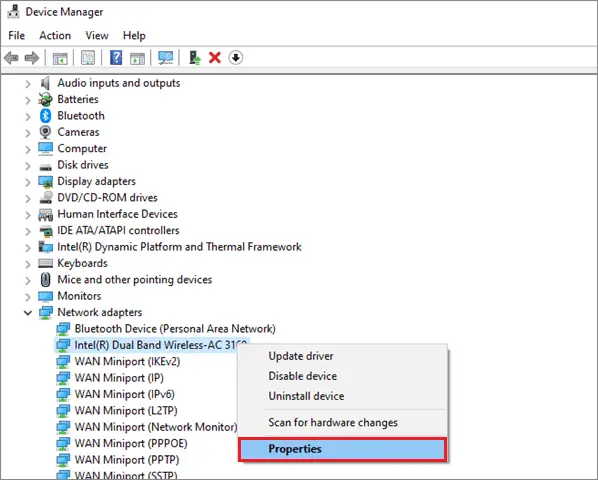
The steps to rolling back the driver are the same as mentioned earlier, albeit for one simple tweak. When you right-click on the driver, select Properties instead of Update driver.
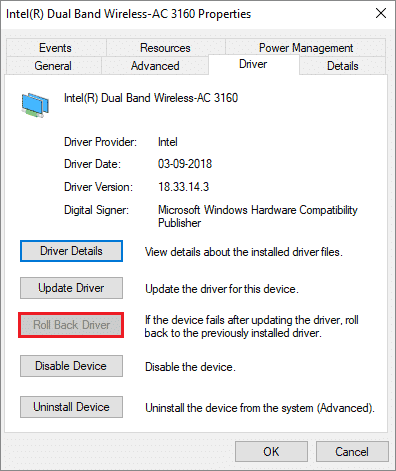
Next, choose the Driver tab. Select the Roll back Driver option; if there is no such option available, it means the driver doesn’t have a previous version.
Make sure you restart the PC after you roll back a driver so that it can come into effect immediately. If you don’t find a previous version of the driver, you can download it from the manufacturer’s website or download it from any other PC and install it on your computer system.
6. Troubleshoot the Network Adapter
Whenever you have trouble connecting with a WiFi network connection that has already been established, running a check through the Network Adapter is a good practice to know the issues you are facing. Every Windows PC offers a built-in troubleshooter for connected data networks.
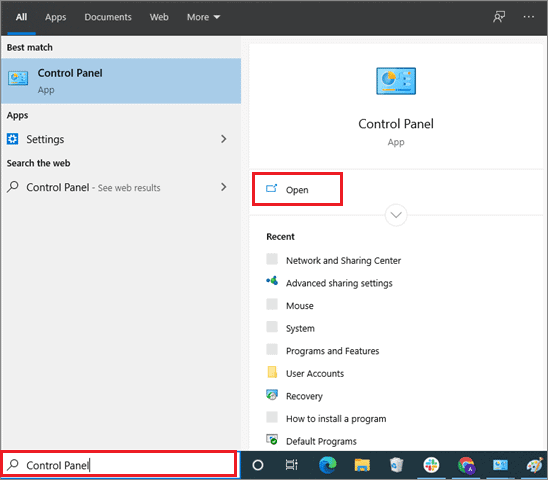
To open the Troubleshooter, open the Control Panel from the Start menu.
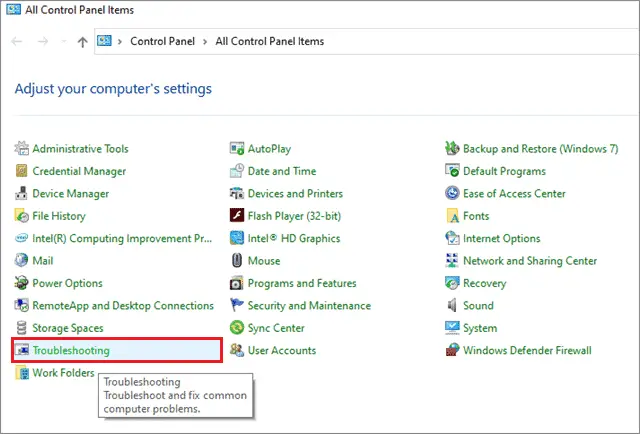
Select Troubleshooting on the menu.
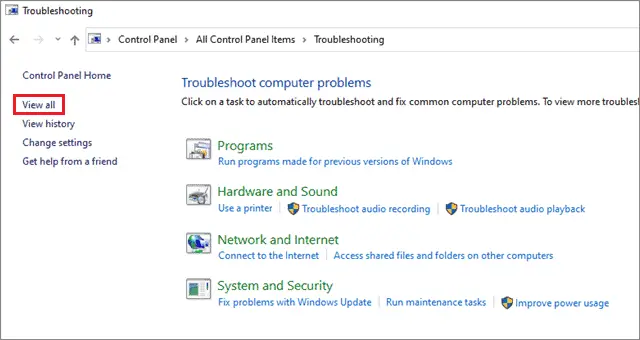
Now, click on View all.
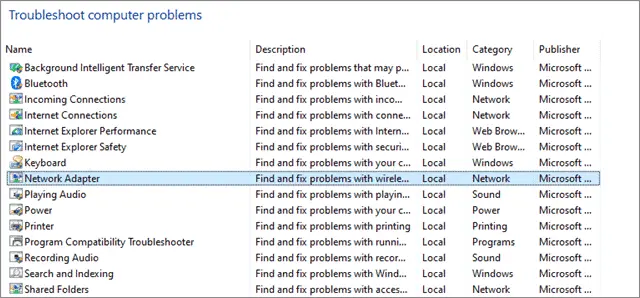
Select the Network Adapter option. Click on Next to start the process.
Click Next in the Troubleshooting window that appears.
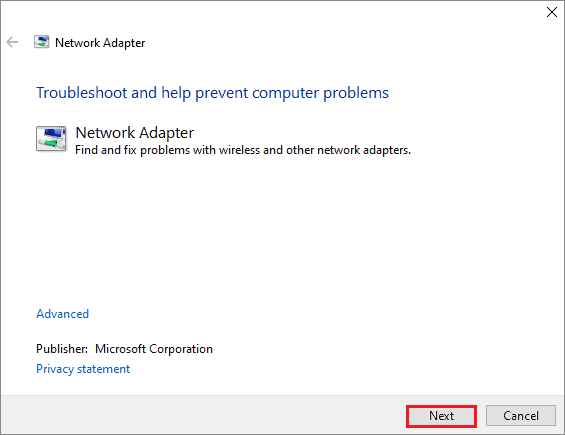
The troubleshooter will start detecting the issues you are facing in establishing a stable connection with your mobile data hotspot. It will also indicate any issues related to hardware if there are any.
If you find any issue, you can click on Diagnose to fix it; if a diagnosis is not possible, you have to turn to other solutions to solve the Windows 10 hotspot no connection issue.
7. Disable the Computer and Mobile Bluetooth
If your Bluetooth connection is turned on, it can be one of the reasons why Windows isn’t able to connect to your cellular data hotspot. To prevent the ‘phone hotspot not working’ issue, make sure you turn off both the Bluetooth for both PC and mobile devices.
To turn off the Bluetooth connection on Windows 10, open the Settings menu from the Cortana search bar.
Then, Choose Devices.
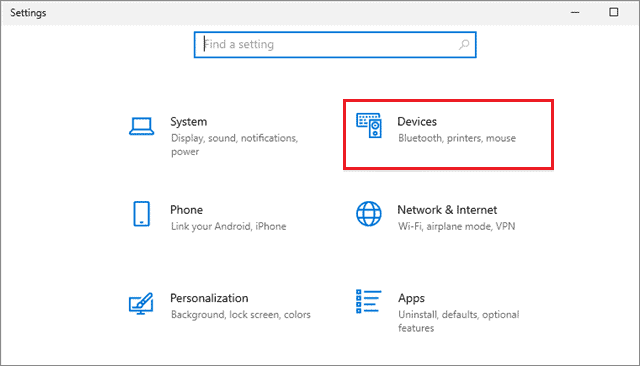
Select the Bluetooth option and turn it off.
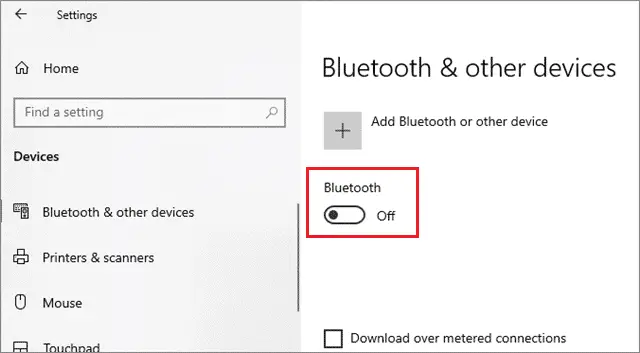
You can do the same on your mobile device as well. A shortcut to carry out this step is to turn off the Bluetooth connection from your mobile notification area.
8. Run the Internet Troubleshooter
The internet troubleshooter is specially designed to eradicate all the problems related to your internet connection.
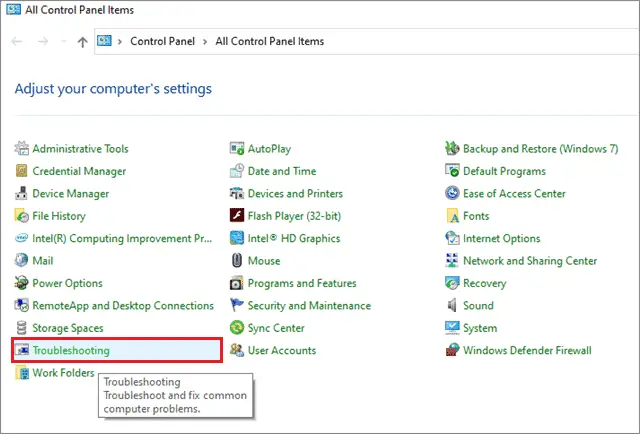
To open the Troubleshooter, open the Control Panel from the Start menu.
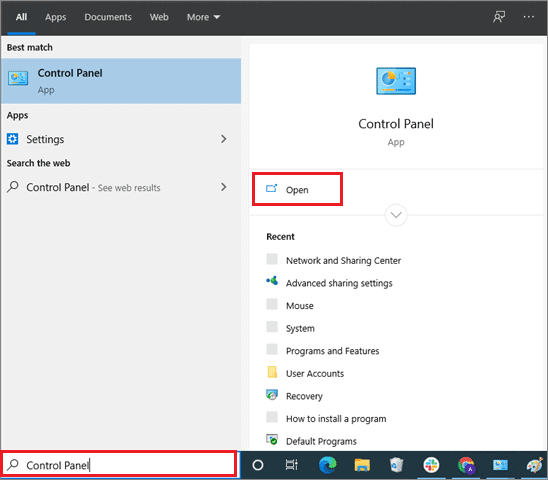
Choose Troubleshooting in the Control Panel.
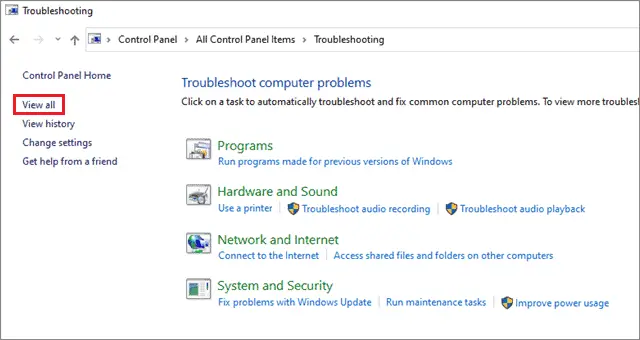
Now, select View all in the left sidebar.
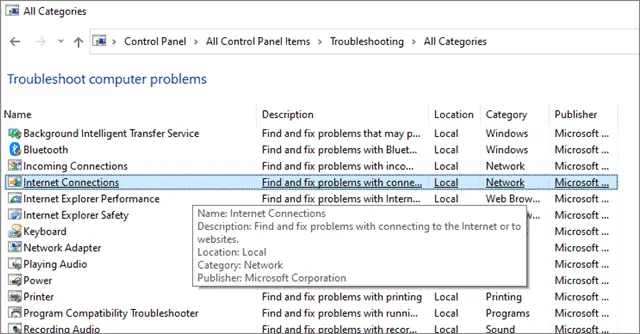
Select Internet connections from the list.
Click on Next to run the troubleshooter.
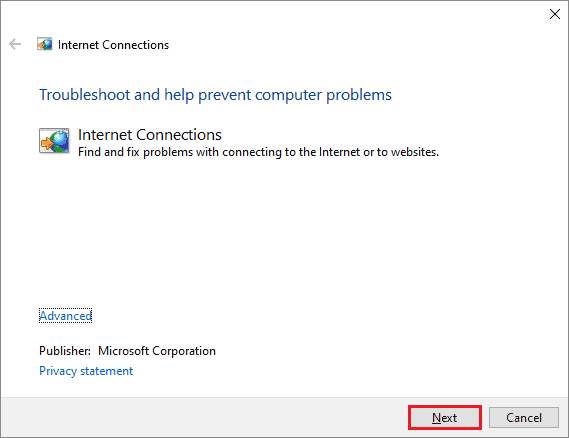
Running this troubleshooter can solve the ‘mobile hotspot not working’ issue. You can apply the next solution if this doesn’t work out.
9. Install Driver In Compatibility Mode
You are already familiar with the process of installing and updating the drivers if you have read the previous solutions mentioned in this article. At times, drivers are installed in compatibility mode to match the operating system they are working on.
First and foremost, download the latest driver from the manufacturer’s website..
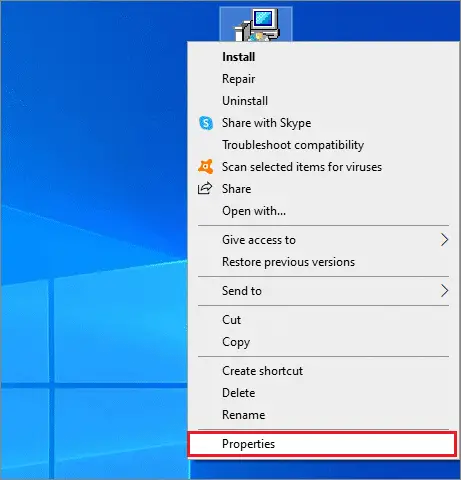
The next step is to right-click on the setup file and select Properties.
Select the compatibility tab and choose Run this problem in Compatibility mode. Select your operating system from the menu. After the driver is installed, check its functionality.
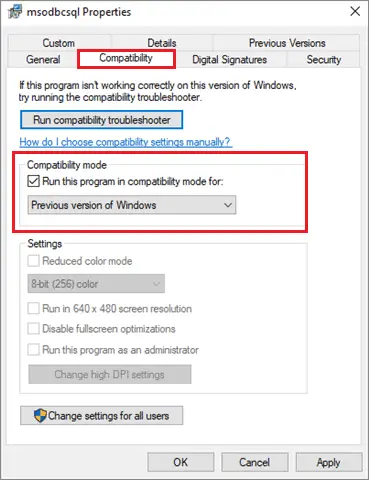
Once you have carried out the steps, restart the computer. Try connecting your Wi-Fi hotspot after the computer restarts.
10. Check the WiFi Adapter
Issues with your Wifi adapter can lead to a ‘mobile hotspot not working’ issue. It might not allow your mobile hotspot to connect to your Windows 10 computer.
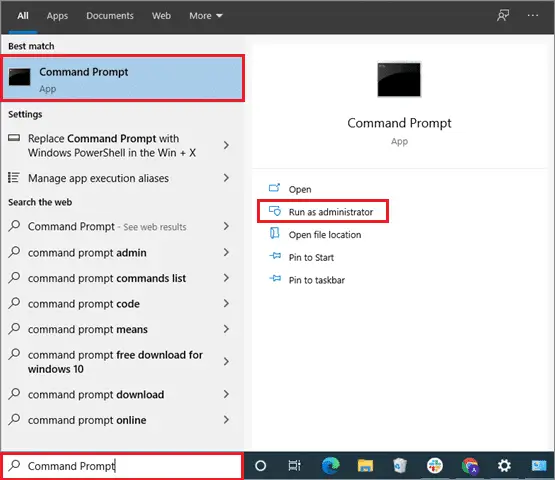
You have to run the Command Prompt in the Administrator mode to fix this problem. Type ‘Cmd’ in the Cortana search bar.
Now, enter the command ‘NETSH WLAN show drivers’ and press the Enter key. From the results, look for a line Hosted network supported.
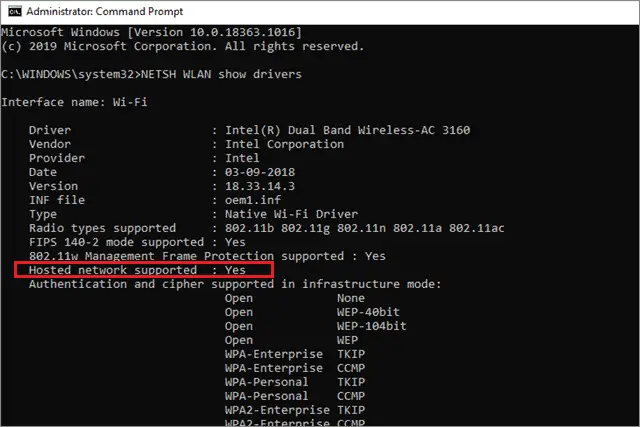
If it is No, it means the Wifi adapter is incompatible for the mobile hotspot feature. You have to buy a new adapter in this case because an adapter cannot be repaired.
11. Start PC In Safe Mode
The Safe Mode in a computer is only used when you want to run the system with a limited number of files. If you are running your PC in Safe Mode, you can see the words ‘Safe Mode’ in the corner.
After you have made sure that the ‘mobile hotspot not working’ hasn’t occurred in the Safe Mode, follow the steps below.
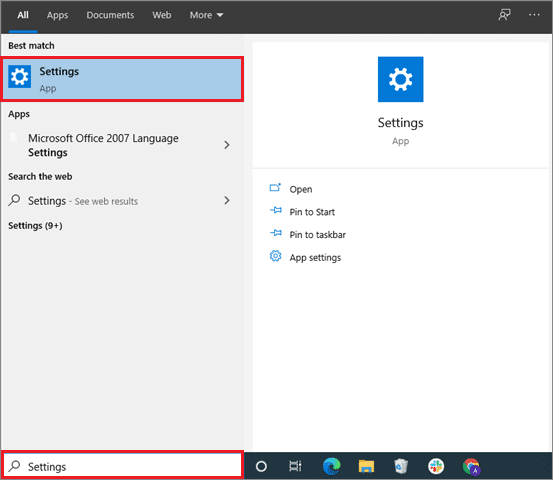
Open the Settings window from the Start menu.
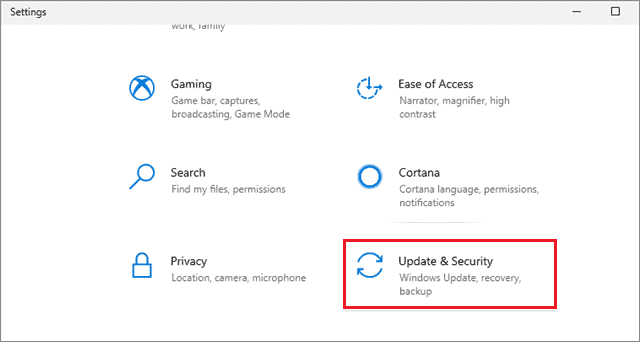
Next, click on Update and Security.
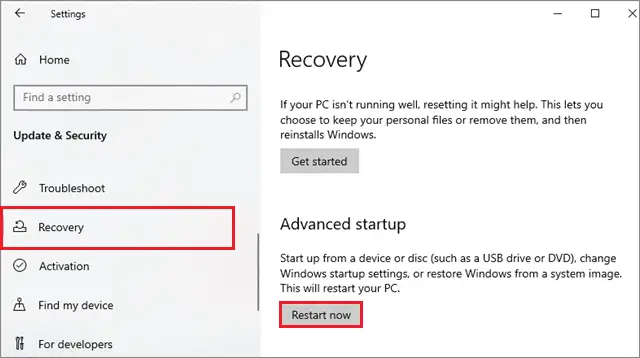
Choose Recovery in the left pane and go to Advanced Startup.
Click on Restart now and select the Troubleshooting option. Then, click on Advanced options.
Now, navigate to the Startup Settings and click Restart. You will see a list of options once the computer has restarted. Choose F4 to launch the Safe Mode.
In case if the problem is solved in Safe Mode, you can conclude that your drivers and settings aren’t the root cause of the issue.
12. Perform A Clean Boot
When you open your computer, many processes start automatically in the background. These applications and services tend to cause conflicts due to which the ‘mobile hotspot not working’ issue might occur.
You can execute a clean boot to end these processes. The only condition to do a clean boot is you have to operate your computer in Administrator mode.
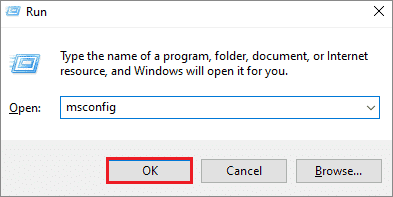
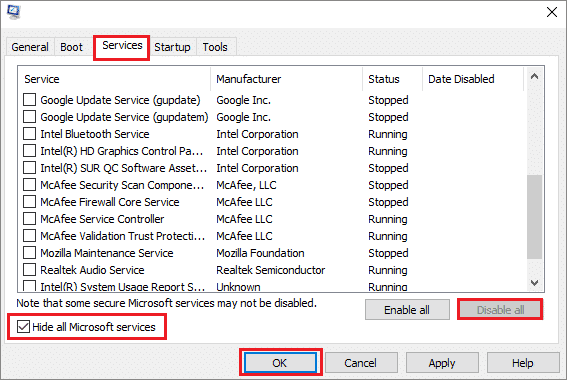
Once you have opened your computer, open the Run window and enter msconfig. Click Ok to confirm the entry. The System Configuration window opens up after this step.
Navigate to the Services tab and select Hide all Microsoft devices box. Then, click on Disable all.
Now, go to the Startup tab and click on Open Task Manager. Check if any processes are running. If no, then click on Close.
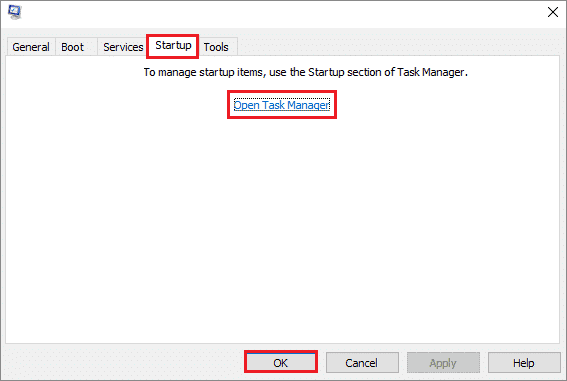
Click on Ok to close the System Configuration window and reboot your computer. Once it restarts, try connecting the cellular data hotspot to your Windows 10 PC.
You will get a clean environment with no unwanted processes running in the background, which should solve the hotspot not working issue.
13. Check the Registry To Fix Mobile Hotspot Not Working
If the method mentioned above doesn’t solve the ‘mobile hotspot not working’ issue, you can fix it through the PC’s registry. When the registry entries are changed, it might cause some problems and affect how some processes work.
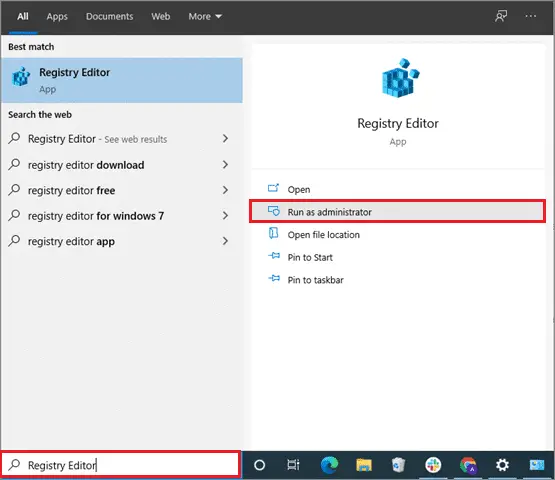
First, type Registry Editor in the Cortana search bar and open the Registry Editor in Administrator Mode.
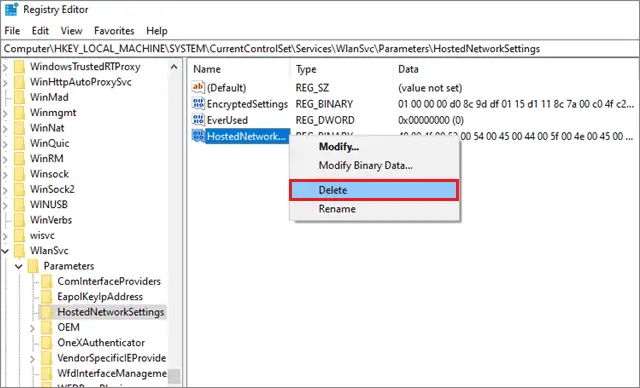
Now, navigate to the following key:
HKEY_LOCAL_MACHINESYSTEMCurrentControlSetServicesWlanSvcParametersHostedNetworkSettings
Navigate to the HostedNetworkSettings, right-click on it, and select Delete.
Now, try to connect your Wi-fi hotspot to your PC. If this solution doesn’t fix the issue, you can go for the next.
14. Check Allow Sharing Connection Settings
Before you ask yourself, ‘why is my hotspot not working?’, make sure you have turned on the sharing settings of your mobile WiFi hotspot. You can check that by following the simple steps given below.
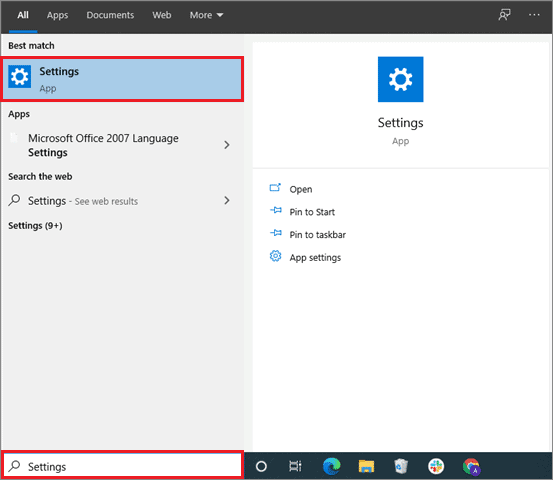
First and foremost, open the Settings window from the Start menu.
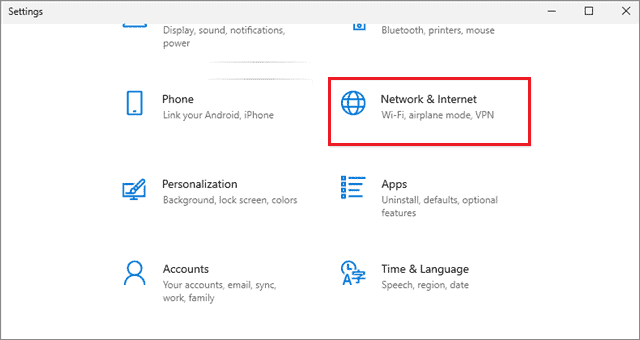
Click on Network & Internet from the available options.
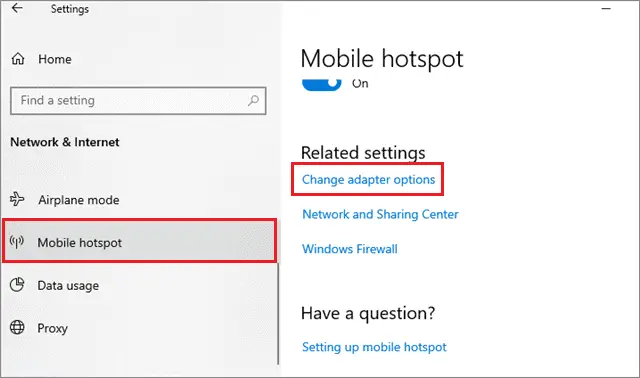
Now, select the Mobile Hotspot option in the left pane, and click on the Change adapter settings option.
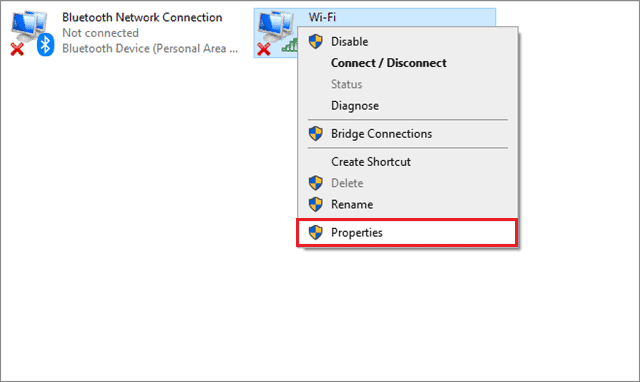
Next, right-click on Ethernet connection and select Properties.
Select the Sharing tab and uncheck the Allow sharing connection option. Restart the mobile data hotspot once you have carried out the aforementioned steps.
Now, you have to allow other network users to connect to other Wifi networks. To do that, go to the Network and Sharing Center.
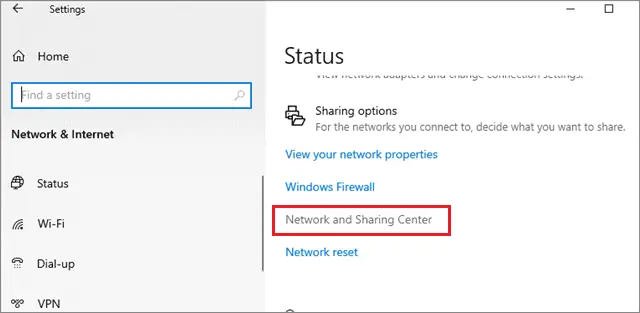
Now, under the View your active networks option, choose the source network from which you connect to the internet.
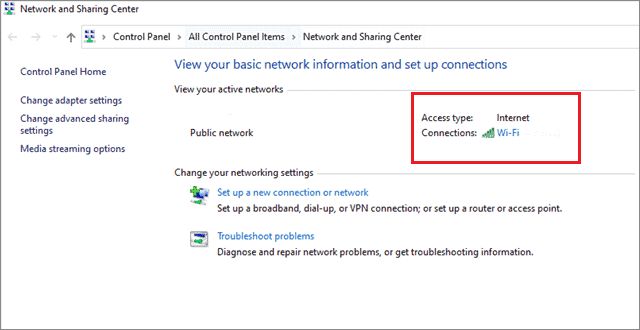
Then, click on Properties and navigate to the Sharing tab. Next, select the Allow other network users to connect through this computer’s internet connection option.
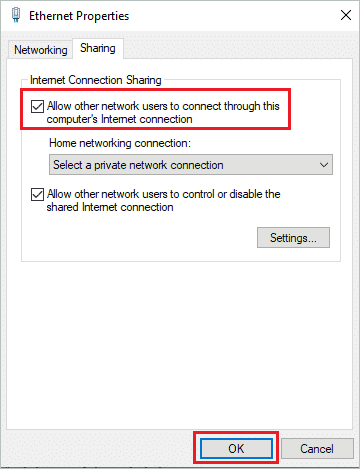
Click on the Ok tab once you have done the process. Check your data hotspot connection to see if it works with your Windows 10 PC. If this step doesn’t solve your hotspot issue, we can safely conclude that you have encountered a hardware problem.
What If My iPhone Hotspot Isn’t Connecting To A Windows PC?
Many users might have a set of iPhone and a Windows 10 PC. If you are one such user, rest assured knowing you can still connect the hotspot of your iPhone to your PC and access the internet. The solutions listed above are specifically for Windows 10 PCs; the mobile device, regardless of whether it’s an iPhone or an Android device, doesn’t matter. Hence, if the iPhone hotspot not working problem occurs, you can still try all these solutions. They will only work if there is an issue with the PC.
If you have a problem with a macOS, these solutions aren’t the ones you should be looking for. Similarly, one also needs to make sure that his mobile phone device, regardless of the operating system, has a WiFi hotspot facility in fine working condition.
Conclusion
The mobile hotspot feature is used to share a cellular internet connection with multiple devices at a time. The WiFi hotspot feature also comes handy when you are in a place that doesn’t have an internet connection; in such cases, you can use your mobile hotspot to access the internet.
But, users often encounter mobile hotspot not working issue due to several reasons. The problem has to be solved using the trial-and-error method; since there are many reasons why a WiFi hotspot might not connect to a Windows PC, so are the number of solutions. Different solutions work for other users; it all depends on why the issue occurs in the first place.
Related: Resolve “No Internet, Secured” WiFi Error in Windows 10