

Desktop icons are the heart and soul of a user’s desktop. They offer easy navigation to the user; you can quickly start an application with a double-click rather than navigate a certain path to create the same. However, the ease of use is lost when the Windows 10 desktop icons missing issue occurs.
Whenever a desktop icon disappears, it also tends to create doubt and confusion if the application itself faces an issue. Users often panic if they start their monitor just to find no trace of the ten to fifteen desktop icons on their computer.
How To Fix Windows 10 Desktop Icons Missing Issue
First and foremost, you need to execute some basic methods to bring the icons back. If they don’t work, move on to complex solutions to eradicate the problem. Even if the icons on the desktop do disappear, you can still operate your PC using the Start menu. However, to avoid the tedious navigation process, let’s see how we can solve this issue.
1. Ensure The Desktop Icons Are Enabled
Every issue can be fixed by trying out some basic solutions. If your desktop icons have disappeared, you need to make sure they are enabled. Sometimes, users tend to disable them accidentally, but they can easily be enabled with a few clicks.
To begin with, right-click in any blank space on the desktop and select View from the drop-down menu. Click on Show desktop icons in the drop-down menu that appears.

If the option has a tick mark, it means the icons are enabled for view. Whenever you experience the desktop icons missing in Windows 10, make sure you execute this ‘show desktop icons’ solution in the very beginning.
2. Reconfigure Desktop Settings
Sometimes, the erroneous configuration of desktop settings could cause the icons to go missing. In such cases, you can reconfigure the desktop settings to solve the issue.
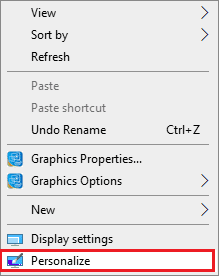
Right-click on the blank space on a desktop, and select Personalize from the drop-down menu.
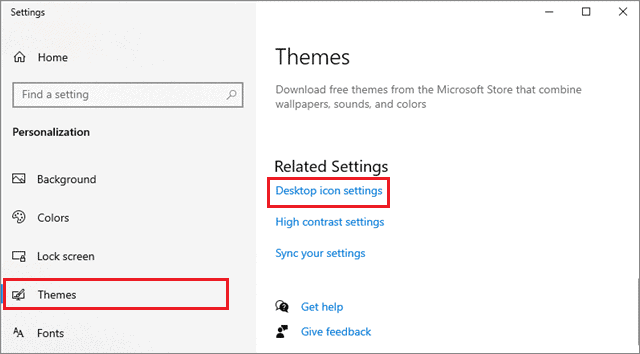
Now, choose Themes in the left window pane and select Desktop icon settings in the right window pane.
You will now see a screen that allows you to select or deselect some important desktop icons that you want to show on your screen. Select the icons as per your preferences; click on Apply and then Ok.
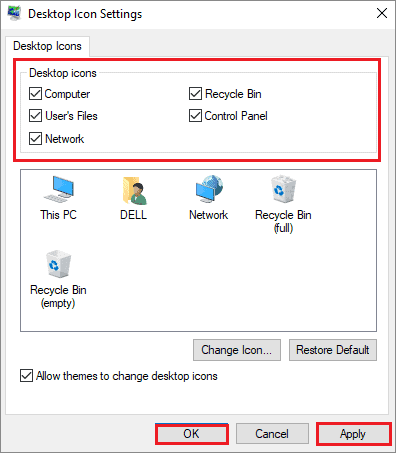
If not all, this method will help you regain the essential and necessary desktop icons like My Computer and Recycle Bin that you ought to have on your desktop. This solution can solve the ‘Windows 10 desktop icons missing’ issue partially.
3. Toggle The Full-Screen Option From Start Menu
Toggling the Start Menu’s full-screen option is also one way to bring back icons not showing on desktop. Tweaking your user interface might help you in fixing the missing icons issue.
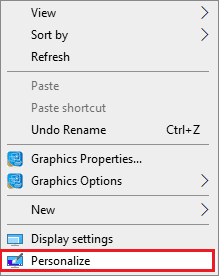
Right-click on the blank space on desktop and select Personalize from the drop-down menu.
Now, select the Start option in the left sidebar. You will see an option called Use start full screen on the right pane, which is turned OFF. Turn it ON and then turn it OFF again.
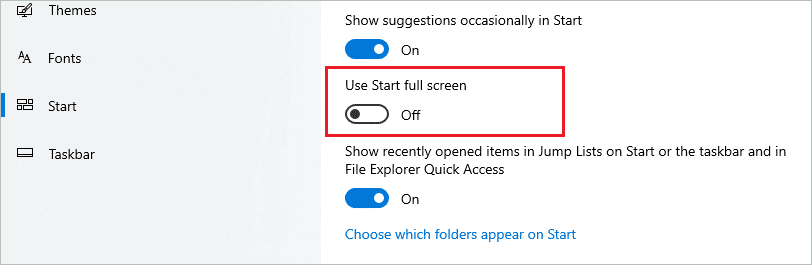
If this solution doesn’ solve the ‘desktop icons missing’ issue, you can try the next method.
4. Toggle The Tablet Mode
Users can also view their desktop on Windows 10 in Tablet Mode. Sometimes, not switching back to the original mode might also cause the ‘Windows 10 icons missing’ problem.
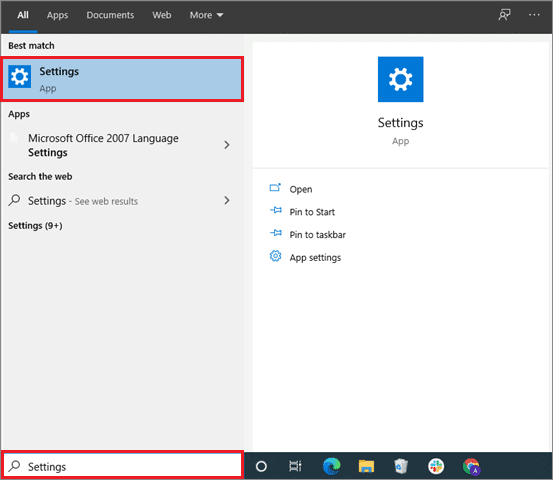
To solve the issue, launch the Settings app from the Start menu.
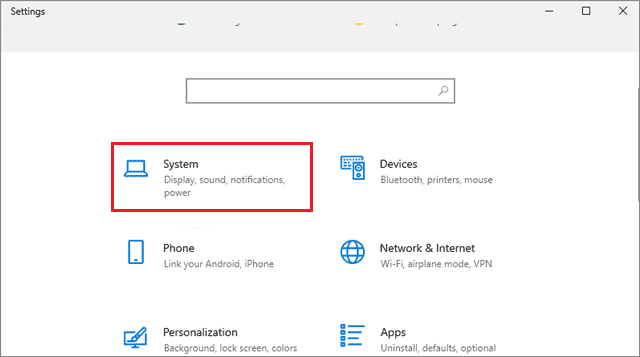
Next, click on System.
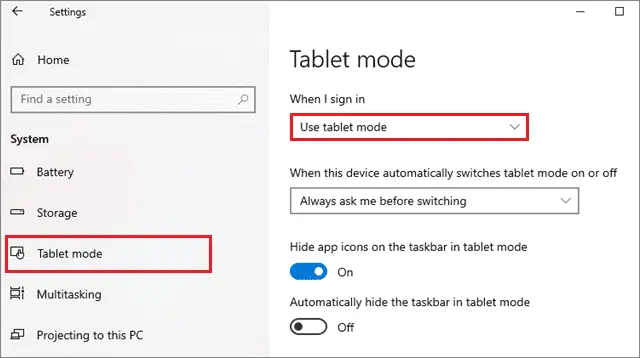
Select Tablet mode from the left sidebar. In the right pane, set the ‘When I sign in’ option to ‘Use tablet mode.’
Now, to ensure that the settings take effect, restart the computer from the Start menu.
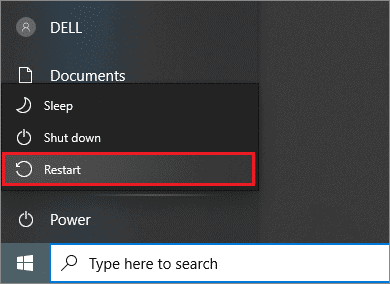
After the restart, disable the tablet mode again. Desktop icons are not shown in the usual manner in this mode; hence switching back from the tablet mode could help solve the ‘Windows 10 desktop icons missing’ issue.
5. Relaunch Windows Explorer
Many users are unaware that the desktop icons are a part of the explorer.exe process running on their computers. If the operation encounters any problems, it can cause the ‘desktop icons disappeared’ issue.
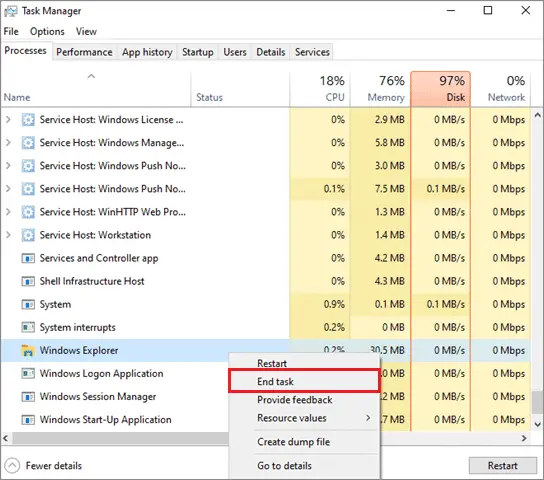
The best way to fix this problem is to relaunch the process. First, open the Task Manager window by pressing the CTRL+ALT+DELETE combination of keys on the keyboard.
Click on the Processes tab. Now, locate the Windows Explorer process, right-click on it, and select End task.
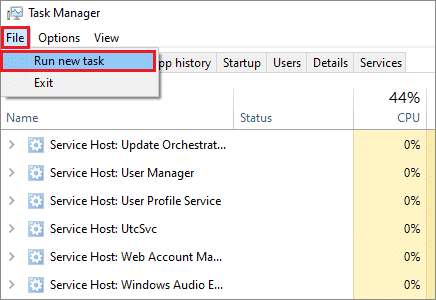
To relaunch the task, click on File and select Run new task.
Type explorer.exe in the space and click on OK to create and run the task.
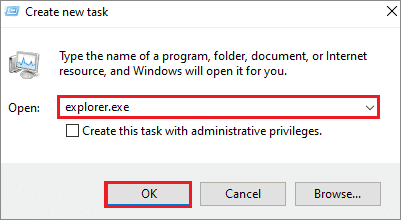
This solution should hopefully fix desktop icons missing in Windows 10 issue.
6. Rebuild The Icon Cache
The icon cache file is used to display the icons on your desktop. However, if the cache file encounters any problem, you might face the ‘Windows 10 desktop icons not showing’ issue. You can easily recreate this file and solve the problem.
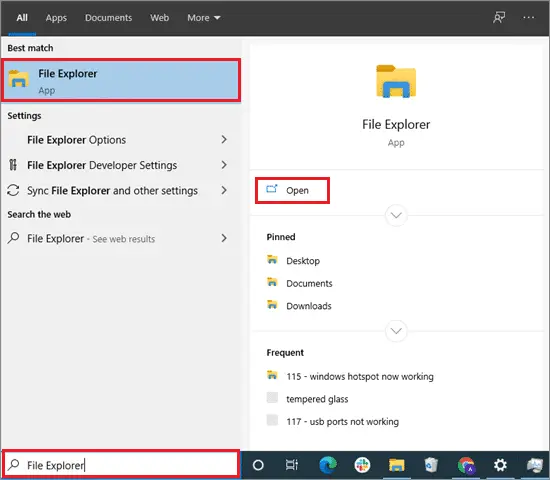
First and foremost, open the File Explorer from the Start menu.
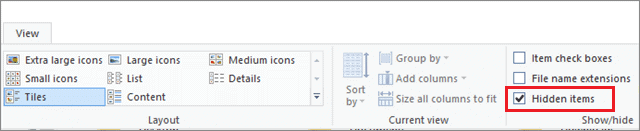
Then, click on the View tab of the menu bar and check the Show hidden icons option.
Next, navigate to the following path:
C:Users<your-username>AppDataLocal
Locate IconCache.db, right-click on it, and click Delete.
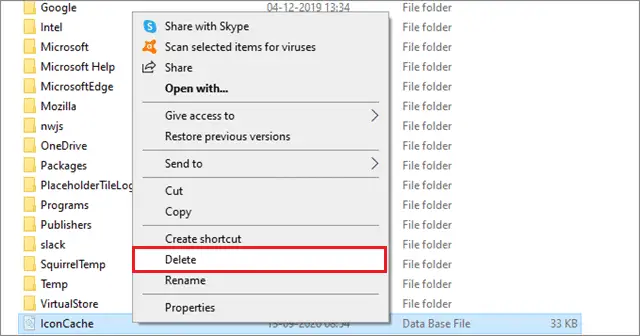
Also, make sure you empty your Recycle Bin after executing these steps. After that, rebooting the computer will create a new cache for your desktop files, thus solving the ‘Windows 10 desktop icons missing’ problem.
7. Scan Corrupt Files To Fix Windows 10 Desktop Icons Missing Issue
Sometimes, corrupt files might also cause the icons not showing up on the desktop. It is prudent to run a scan and fix the corrupt files to solve the issue in such cases.
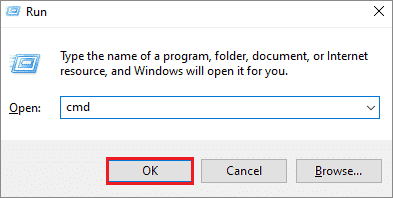
To begin with, open the Run command window from the Start menu. You can also do the same by using the Win key + R keyboard shortcut. Type ‘Cmd’ in the space and click on Ok to open the Command Prompt window.
Type the ‘sfc /scannow‘ command and press Enter.
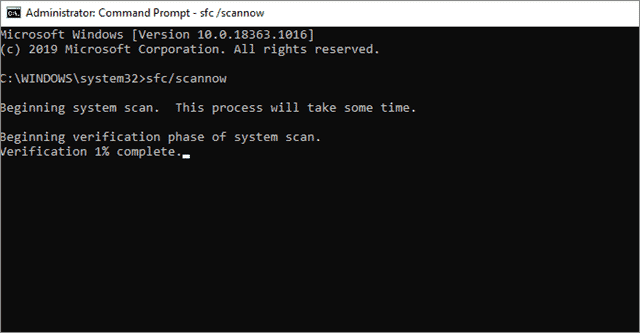
Now, wait for the scan to start and fix the corrupt files. If this solution doesn’t work, you can move on to the next.
You can also use the CheckDisk Utility using the command line ‘chkdsk c: /f /r’ instead of the scan now function to eradicate corrupt files. The ‘c’ in the command line represents the drive you are going to scan. You can replace it with any letter representing another drive and execute the scan by pressing ‘Enter.’
8. Roll Back To The Previous Restore Point
If you make changes to your computer’s configuration, it might also affect the desktop icons in some cases. To solve this issue, you can roll back the computer configuration to a previous restore point when the desktop icons were perfectly visible.
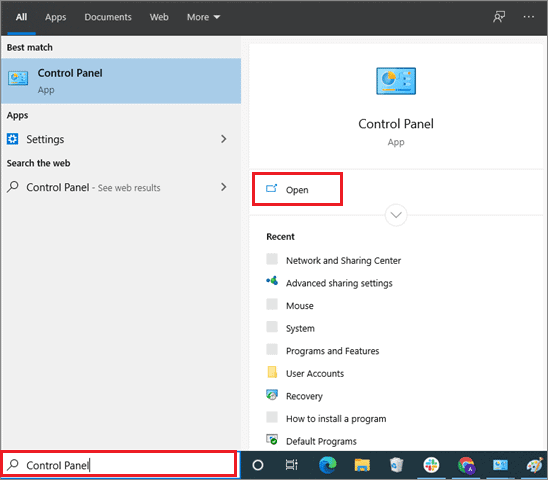
Open the Control Panel from the Start menu.
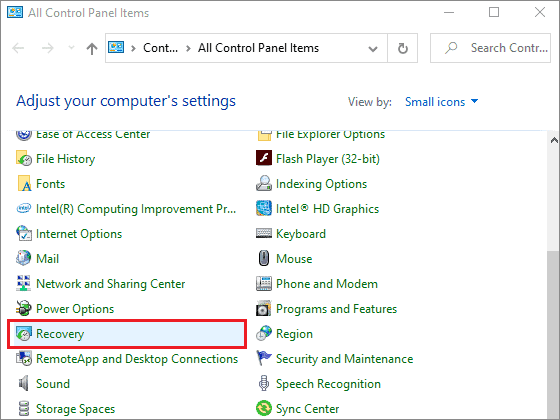
Then, click on Recovery.
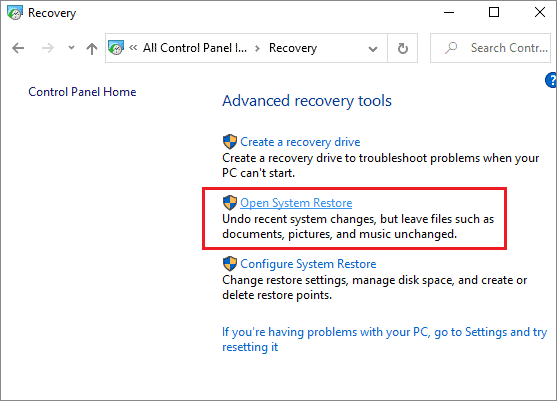
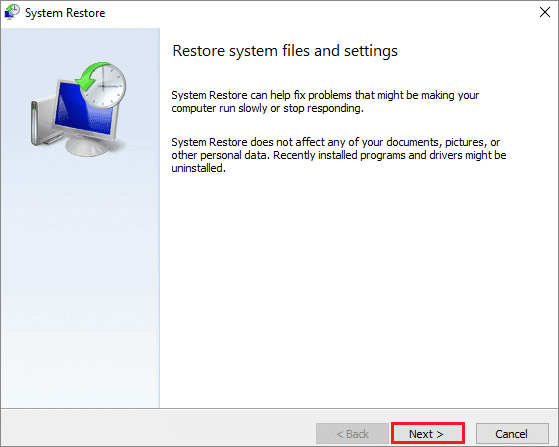
Select Open System Restore on the following screen.
Click on Next to restore the previous files and settings.
In the next window, you will see a couple of restore points. Select the restore point to which you want to roll back, and click on Next to begin the recovery.
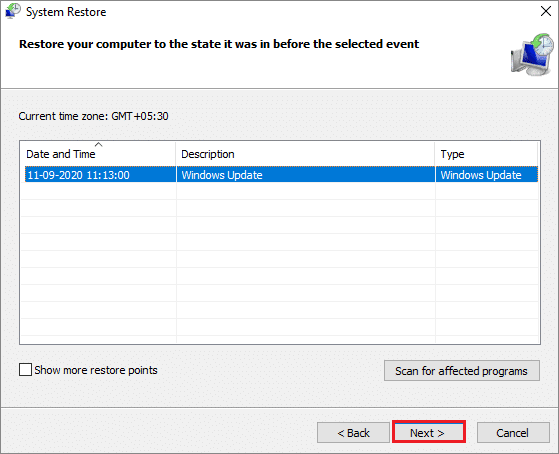
With the settings of a previous restore point in place, the ‘desktop icons missing’ issue will be solved immediately. You can apply the next solution if you don’t get the desired result.
9. Reset Your Computer
After you have tried all the solutions mentioned above and none of them has worked, the last way is to reset the computer to solve the ‘Windows 10 desktop icons missing’ issue. Users need to reset their PC’s factory settings to see if the desktop with icons is back.
To begin with, open the Settings app on your PC.
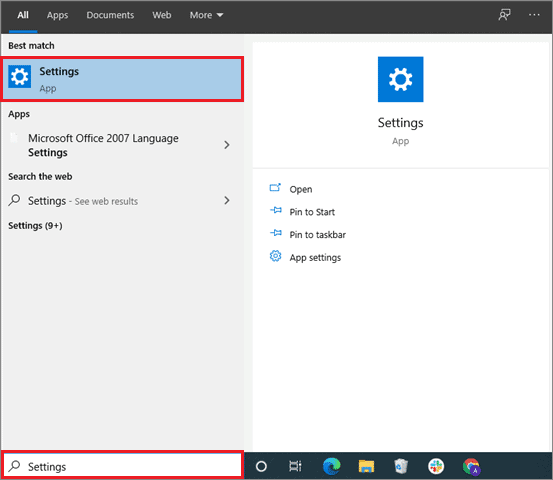
In the Settings window, click on Update & Security.
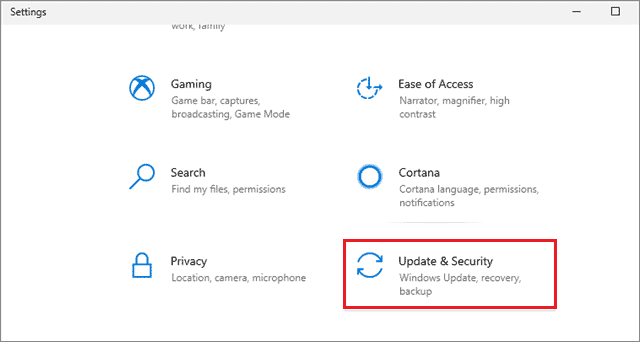
Select Recovery in the left sidebar and click on the Get started button under the Reset this PC section.
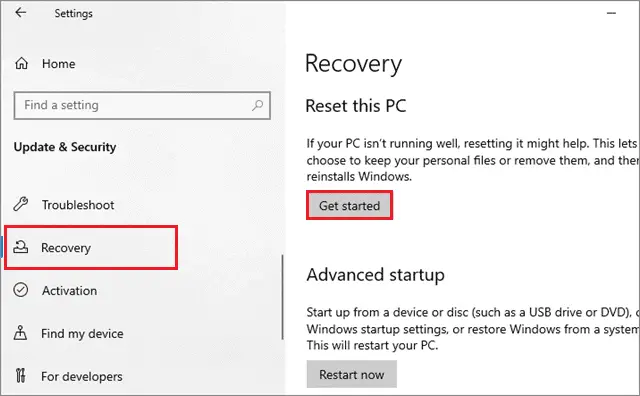
Once the system is reset, the computer will restart. Then, you can check whether resetting has done the trick. Remember, this solution should be used only if you have been unable to get satisfactory results using the methods mentioned above.
Resetting the factory settings means you would also lose essential files on your PC and cannot recover them unless you have a backup stored on another hard drive.
Final Thought on Windows 10 Desktop Icons Missing Issue
‘Windows 10 desktop icons missing‘ is one of the most common issues faced by many users. Windows 10 icons missing from the desktop could create difficulties in navigating and opening applications. Hence, appropriate solutions are necessary to eradicate the problem.
There are several reasons why the desktop icons on your system might go missing. The perfect way to start troubleshooting is to use the first and basic method mentioned in this article. The Reset method should always be reserved for the very last since it also requires users to do extra work and backup their important files before resetting the factory settings.
No single solution will work for every user; since there are several reasons why the icons problem occurs, it requires several solutions.